How Roblox Handles Skin Approvals
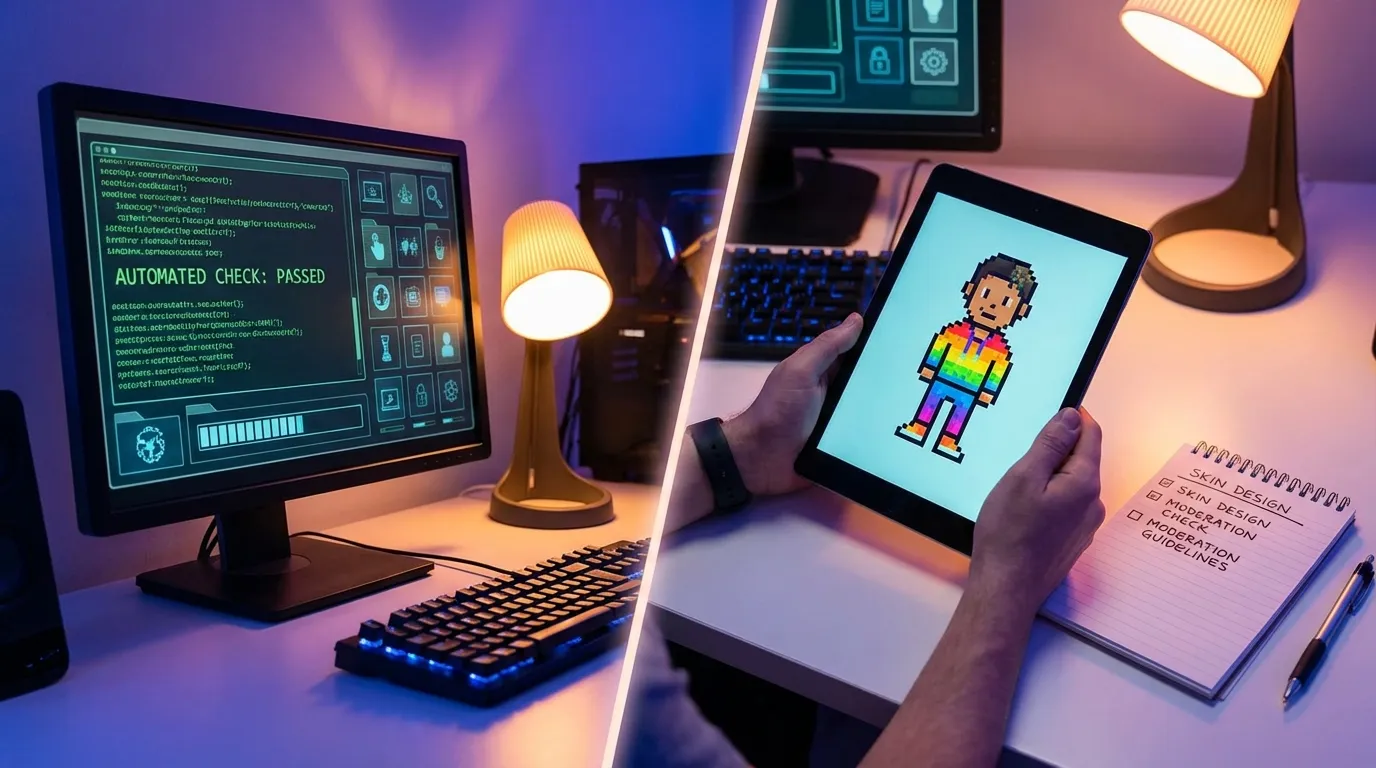
Roblox ensures all skins and avatar assets meet strict safety, content, and technical standards before they appear on the platform. The process involves two steps: automated checks for technical issues (like file structure and texture sizes) and human moderation to review content for policy compliance. This safeguards users, especially children, from inappropriate or unsafe designs while maintaining a fair and reliable marketplace for creators.
Key points:
- Approval Steps: Automated scans for technical errors → Human review for policy compliance.
- Common Rejection Reasons: Inappropriate content, copyright violations, or technical issues (e.g., incorrect file formats or rigging problems).
- Creator Guidelines: Skins must meet modesty requirements, avoid copyrighted material, and follow technical specifications (e.g., file size limits, proper rigging).
- Submission Costs: Each upload costs 750 Robux, so avoiding rejections saves time and money.
Creators can improve approval chances by testing designs in Roblox Studio, adhering to guidelines, and using tools like Alive Games for Skins to streamline the process. Even after approval, skins can be removed if they violate policies later. Always review feedback and maintain compliance to avoid issues.
A Guide to Publishing on the Avatar Marketplace (Public UGC) | Roblox
Roblox's Skin Approval Guidelines
Roblox evaluates skins using strict content and technical standards to ensure safety for its largely under-18 U.S. audience and to maintain smooth performance across devices. For creators, understanding these rules is crucial to achieving approval on the first try.
The review process focuses on two main areas: what your skin represents and how it's constructed. Content guidelines emphasize age-appropriateness, intellectual property compliance, and community safety. Meanwhile, technical standards cover file formats, mesh construction, and performance requirements. Both must be met before a skin is approved for the platform.
What Roblox Checks During Review
Roblox moderators carefully inspect skins and avatar assets to ensure they align with Roblox Community Standards. For example, skins cannot feature nudity, exposed genitalia, nipples, pubic hair, or transparent clothing. Textures must also avoid emphasizing areas like breasts, buttocks, or the pelvis.
When it comes to avatars resembling humans or minors, Roblox enforces strict modesty requirements. Base layers must be opaque, use colors distinct from the skin tone, and avoid any sexual undertones, ensuring proper coverage of sensitive areas like the chest and pelvis. While human-like avatars face tighter restrictions, fantasy or stylized characters are given slightly more leeway, provided they remain suitable for younger audiences.
Intellectual property compliance is another critical area. Skins cannot include copyrighted logos, brand names, characters, or trademarked designs without explicit permission. Creators are encouraged to use original artwork and generic patterns to avoid legal complications.
On the technical side, Roblox has specific rules for avatar structure. Each avatar must include one dynamic head, one torso, a right and left arm, and a right and left leg - no extra appendages are allowed. Skinned meshes must adhere to a maximum of four bone or joint influences per vertex, avoid influencing the root bone, and maintain clean, outward-facing normals with consistent skeleton scales. These measures prevent issues during import and animation in Roblox Studio.
Visibility standards also play a role. Avatar body parts must be clearly visible in-game. For instance, torso and limb parts should occupy at least 50% of their bounding boxes, while head meshes should fill around 35%. This ensures that parts don’t become invisible or exploited during gameplay.
For layered clothing, creators must follow Roblox's naming conventions, preserve the original vertex counts and UV layouts, and ensure that the outer cage meshes fully cover the underlying body. Failure to do so can result in glitches when clothing interacts with different avatars.
Metadata accuracy is equally important. Titles or descriptions containing profanity, hate speech, sexual language, or misleading claims can lead to rejection. Additionally, items must be correctly categorized - for example, full hairstyles should go under the Hair category, while partial styles belong in the appropriate accessory section. Missteps in these areas often lead to rejection.
Why Skins Get Rejected
Understanding common reasons for rejection can help creators refine their submissions. Content violations, such as improper modesty layers on avatars resembling minors, are among the most frequent causes of rejection.
Copyright infringement is another major issue. Using recognizable logos, sports team emblems, celebrity likenesses, or characters from popular media without permission often results in rejection, even if the design has been altered. Creators in the U.S. should also be cautious about incorporating elements like flags, political symbols, or local sports team logos, as these can raise trademark or copyright concerns.
Technical errors also lead to frequent rejections. Issues like incorrect file formats, misaligned UVs, or faulty transparency settings might trigger automated rejection before human reviewers even see the submission. For example, skinned meshes that exceed four bone influences per vertex won’t import properly, and body parts that fail to meet size requirements - such as heads occupying less than 35% of their bounding boxes - may be flagged as exploits.
Rigging problems, such as scaled skeletons or joints with duplicate names, can disrupt animations and lead to import failures. Similarly, altering vertex counts or UV layouts on standard body cages for layered clothing can result in rendering glitches when the clothing interacts with various avatars.
Metadata mistakes are another common pitfall. Titles that make false claims about gameplay advantages or descriptions containing offensive language can cause even a technically correct skin to be rejected.
To minimize these risks, some creators turn to specialized tools. For instance, Alive Games for Skins (https://alivegames.io) offers a browser-based editor tailored for Roblox compatibility. It helps designers stick to texture resolution and layering requirements, streamlining the creation process and reducing the chances of rejection.
The best way to avoid rejection is by thoroughly reviewing your work before submission. Double-check your design against Roblox’s content policies, verify that technical specifications are met, and ensure your metadata is clear and accurate. By doing so, you’ll greatly improve your chances of gaining approval on the first try. Up next, we’ll dive into practical tips for creating skins that meet these standards.
How the Approval Process Works
Roblox's guidelines lay the foundation for how skins are reviewed and approved. Here's a step-by-step look at the process, from submission to post-approval monitoring. Knowing how this works can help you better plan your releases.
How to Upload and Submit Skins
Submitting a skin for Roblox moderation is straightforward. Start by heading to the Roblox website and navigating to your avatar settings. Choose the correct category for your item - like shirts, pants, or accessories - and upload your custom template file.
For more advanced items, you'll need to use Roblox Studio and the Creator Dashboard. This involves uploading mesh files, texture maps, and any required cage meshes through the asset manager. The system will automatically check file formats and texture resolutions to ensure compatibility.
Next, fill in the item details, including the title, description, and category. Be accurate here, as these details help describe your skin to potential users. Certain item types also require a Robux publishing fee. As of 2024, Roblox has opened the Avatar Marketplace to all eligible users, not just UGC partners.
Once you’ve completed these steps, your item enters the moderation queue. Automated checks will scan for file errors before it moves on to human review.
Review Times and Status Updates
The time it takes for your skin to be reviewed depends on Roblox's moderation workload. Typically, it takes a few hours, but during busy times - like major U.S. holidays, weekends, or when new features launch - it could take up to two days.
While waiting, you can monitor your submission's status through the Creator Dashboard. Common statuses include "Pending" (still in the queue) and "Failed" or "Rejected" (indicating a rule violation or technical issue). Since Roblox doesn’t send email updates for every status change, it’s important to check the dashboard regularly, especially if you’re on a deadline.
Up next, let’s look at what happens once your skin is either approved or rejected.
What Happens After Review
If your skin is approved, its status will change to "Approved", "On Sale", or another published state. Once live, it will appear in your inventory, ready for users to purchase or access for free. The Creator Dashboard will also display performance metrics, such as sales numbers and user adoption rates, so you can track how well your item is doing.
If your submission is rejected, Roblox provides feedback explaining the issue - whether it’s related to content, technical problems, or metadata errors. Approved skins go live immediately, but for rejected submissions, you’ll need to address the feedback and resubmit. Repeated rejections can slow you down, so it’s crucial to fix all flagged issues before trying again.
Approval doesn’t mean your skin is safe forever. Even after going live, it can be flagged or removed if players report it or if post-publication monitoring finds violations. Offensive imagery, deceptive branding, or unsafe content can lead to action from Roblox.
To avoid these risks, aim for safe designs and keep an eye on community feedback. If you notice any problems or a drop in performance, reassess your skin to ensure it aligns with Roblox's guidelines. This proactive approach can save you from future headaches.
How to Get Your Skins Approved
Getting your skins approved on the first attempt can save you both time and money. Each upload comes with a fee of 750 Robux per accessory, plus a Publishing Advance, so repeated rejections can add up quickly. The trick is to understand Roblox’s expectations and design your skins to meet their standards right from the start. Here’s a breakdown of how to do just that.
Creating Skins That Meet Roblox Standards
Roblox typically rejects skins for two main reasons: content violations and technical errors. To avoid content-related rejections, steer clear of offensive language, hate symbols, sexual themes, drug references, depictions of violence, or unauthorized brand logos. Instead, use original or abstract designs. For example, if a shirt with the phrase "Noob Slayer" gets flagged, changing it to "Game Master" can help it pass. Similarly, swap out copyrighted superhero silhouettes for unique designs or abstract patterns. Be sure to consult Roblox's content policies for a full list of prohibited elements.
Technical precision is just as important. Make sure your skin adheres to Roblox’s resolution and file size requirements. Stick to the standard Roblox clothing template, avoiding any extra padding or borders. The design should also have enough brightness and contrast to make key details pop.
For avatar bodies, the rules are even more specific. Dynamic components like the head, torso, arms, and legs must be included. Avoid incorporating accessories like hair, glasses, or wings directly into the body mesh - these should be separate items. Additionally, human-like bodies or those resembling minors must include a modesty layer (such as additional shirt or shorts coverage) and allow for skin tone customization so players can personalize their avatars. Each body part must also meet visibility thresholds: the torso and limbs should cover at least 50% of their bounding box, while the head must cover at least 35%. Keep all parts fully opaque to prevent issues with transparency tricks.
Before uploading, test your skin in Roblox Studio on several standard R15 avatars and your own avatar. Run animations like jumping and turning to check for clipping or floating issues. Fixing these locally before paying the upload fee can save you from unnecessary rejections.
Tools That Make Skin Creation Easier
Once your design meets Roblox’s standards, using the right tools can make the process even smoother. If you’re new to image editing or don’t have access to professional software, web-based tools like Alive Games for Skins (https://alivegames.io) can simplify the process. This platform offers a browser-based editor with customizable templates that automatically align with Roblox’s requirements.
Alive Games provides features like intuitive color selection, layer management, and export options that generate PNG files with transparent backgrounds. These tools can help reduce technical errors that might otherwise lead to rejection. Since the platform is web-based, there’s no need for additional downloads, making it a convenient option for beginners looking to create polished, Roblox-ready skins.
For creators aiming to streamline their workflow, tools like Alive Games for Skins minimize the trial-and-error process. Instead of repeatedly uploading and adjusting designs (and paying 750 Robux each time), you can ensure your file is ready to go from the start. If a skin does get rejected, review the feedback carefully and make only the necessary adjustments. Keeping a record of past submissions and rejections can also help you identify patterns and improve your future designs.
Conclusion
Roblox’s approval process is designed to ensure player safety while giving creators a structured way to publish skins and assets. Every upload is reviewed through a combination of automated systems and human moderation to catch safety violations, copyright issues, and technical problems before assets hit the marketplace or appear in experiences. If you understand what the reviewers are checking for and design with those standards in mind, you can avoid delays and costly rejections.
For simpler skins, approvals often happen within hours. However, more intricate submissions or busy periods can stretch the review process to a couple of days. To stay ahead of potential delays, it’s a good idea to upload skins 1–3 days before you need them and stagger your submissions.
Most rejections stem from copyright problems, inappropriate content, or technical mistakes. Before uploading, use a checklist to confirm your design is original, fits avatars correctly, and meets resolution standards. This can help you avoid wasting the 750 Robux upload fee.
Even after approval, assets can still be reported and removed if they’re later found to violate policies. That’s why it’s important to stay updated by regularly reviewing Roblox’s Creator Hub documentation and analyzing feedback from moderators. Aiming for a high first-time approval rate not only saves money but also allows you to release assets on schedule, plan marketing efforts effectively, and build trust with your audience.
To make the process even smoother, tools like Alive Games for Skins offer pre-sized templates, margin guides, and export options tailored to Roblox’s requirements. These tools help minimize technical errors, such as incorrect file formats or UV mapping issues, so you can focus on creating designs that meet compliance standards. Paired with testing in Roblox Studio, this approach makes approval more consistent and stress-free.
FAQs
How can creators make sure their skins get approved on the first try?
To boost the likelihood of your skin getting approved on the first try, keep these tips in mind:
- Check Roblox's Community Standards: Make sure your design aligns with Roblox's rules. Avoid anything inappropriate, copyrighted, or against their policies.
- Focus on Quality: Look for issues like misaligned textures or blurry graphics. A polished, professional look goes a long way.
- Follow File Requirements: Submit your skin in the correct format and resolution as outlined by Roblox.
- Be Creative: Aim for original designs that are both eye-catching and suitable for Roblox's audience.
By following these steps, you'll be better prepared to meet Roblox's standards and get your skin approved smoothly.
What happens if a Roblox skin is removed after approval, and why might this occur?
Roblox keeps a close eye on approved skins and assets to make sure they stick to the platform’s community standards and guidelines. If a skin is later found to break these rules - whether it’s because of inappropriate content, copyright violations, or user complaints - it can be taken down.
To steer clear of any problems, make sure your designs follow Roblox’s policies and meet quality expectations. If your skin gets removed, you’ll likely need to revise and improve your design before submitting it again for approval.
What are the common reasons skins get rejected on Roblox, and how can I avoid them?
When submitting skins on Roblox, they can sometimes be rejected due to common technical mistakes. These include using the wrong file format, exceeding size limits, or failing to follow platform guidelines. To minimize these setbacks, make sure your skin files are in the correct format, such as PNG or JPEG, and comply with Roblox's size and resolution specifications. Additionally, ensure your design aligns with Roblox's community standards by steering clear of prohibited content like offensive imagery or inappropriate themes.
Tools like Alive Games can simplify the process. They provide customizable templates and exportable formats designed to meet Roblox's requirements, helping you avoid submission errors and save time.