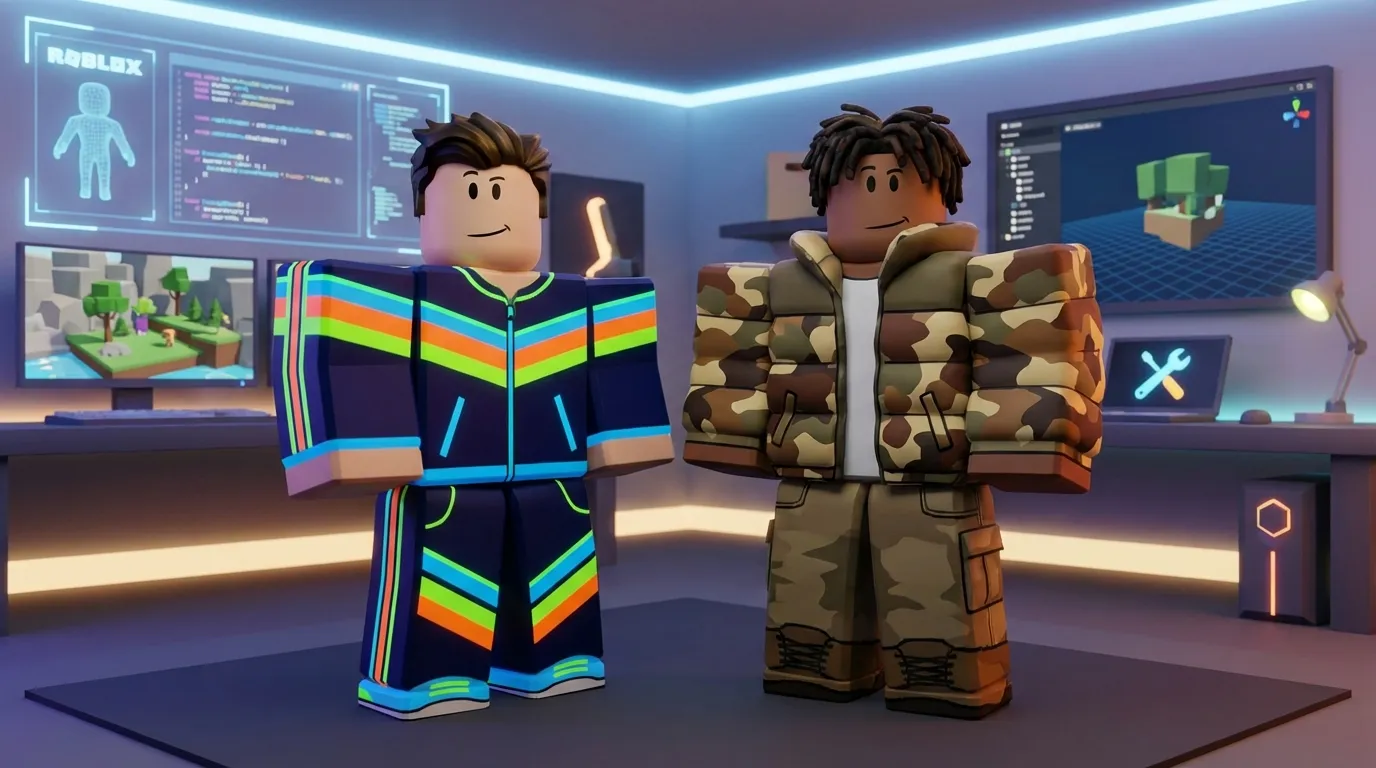
Best Patterns For Roblox Skins
Creating standout Roblox skins involves choosing the right patterns that fit your style and purpose. Popular patterns include stripes, camo, gradients, checkered/grid designs, and simple repeating motifs. Each pattern has unique characteristics, challenges, and uses:
- Stripes: Easy to create, ideal for sporty or casual designs. Horizontal stripes add width, while vertical stripes create a formal look.
- Camo: Complex but bold, perfect for military or tactical themes. Requires careful alignment to avoid visible seams.
- Gradient: Blends colors for a sleek, modern appearance. Works well for futuristic or aesthetic avatars.
- Checkered/Grid: Simple and geometric, great for retro or minimalist styles. Needs precise alignment for clean lines.
- Repeating Motifs: Adds personality with icons like stars or hearts. Best for themed or aesthetic outfits.
For beginners, start with stripes or checkered patterns. Gradients and motifs are mid-level in difficulty, while camo requires more skill. Tools like Alive Games for Skins simplify the design process with preloaded templates and easy exporting options. Always test your designs in Roblox to ensure they look smooth and aligned.
Quick Tip: Combine patterns with solid colors for balance, and avoid overcrowding your design. This ensures your avatar looks polished and visually appealing.
How to Create Your Own Roblox Clothing FREE (2025)

1. Stripes Pattern
Stripes are a go-to choice for beginners designing Roblox skins. They’re straightforward to work with because they repeat smoothly across the rectangular sections of the template. Whether you’re aiming for a sporty jersey, a cozy sweater, or a polished uniform, stripes deliver a bold and clean design that fits perfectly with Roblox’s blocky avatars.
How it wraps on Roblox templates
To get your stripes looking sharp, you’ll need to pay attention to how the pattern wraps around the avatar’s body. The torso sections on the Roblox template are 128×128 pixels, nestled within the larger 585×559-pixel layout. These flat sections connect along their edges to form the 3D body.
For seamless stripes, align the pattern carefully across the seams where the rectangles meet. Horizontal stripes should extend across the front and side panels so they flow without interruption. Vertical stripes, on the other hand, need to connect smoothly from top to bottom, ensuring the pattern stays consistent as it wraps around the body.
There are three key areas where misaligned stripes are most noticeable: under the arms where the torso front meets the sides, at the waistline where the torso connects to the legs, and at the shoulders where the arms meet the torso. Nailing these transitions is crucial to keep your design looking polished.
How it looks on blocky avatars
Roblox avatars are made up of rectangular shapes, so stripes naturally follow these contours. Horizontal stripes wrap around the limbs and torso like bands, creating a casual or sporty vibe - think jerseys or sweaters. Vertical stripes, meanwhile, stretch from top to bottom, giving the illusion of height and adding a formal touch, similar to pinstripes on a suit.
However, the sharp angles of the avatar’s limbs can slightly disrupt stripe continuity. Thin stripes, in particular, might appear uneven or "choppy" at these edges. Medium or thicker stripes tend to look cleaner, especially when viewed from typical in-game camera distances. Many creators recommend thicker stripes for mobile players since smaller details can be hard to see on smaller screens.
Horizontal stripes are great for casual and retro styles, emphasizing width and creating a laid-back look. Vertical stripes, on the other hand, add height and a sharper, more formal aesthetic, making them a solid choice for uniforms, business attire, or sleek fashion designs. Both styles maintain their crisp, geometric look on Roblox’s classic avatars, making them reliable options for any custom creation.
How to create it manually
Now that you know the basics, let’s talk about creating your stripe design step by step.
Start by downloading an official or community-made shirt template in PNG format. Open it in your favorite graphics editor, set it to low opacity (20–40%), and lock it in place so you can see the labeled sections clearly. This will help you keep track of where each body part starts and ends.
To create your stripes, enable the grid or use guides to keep everything evenly spaced. Use the rectangle or shape tool to draw your first stripe, then duplicate it to fill the template. For horizontal stripes, draw across the front torso section and extend the pattern onto the side panels at the same vertical position. For vertical stripes, create columns that run top to bottom on the front panel and mirror them on the back and sides for seamless alignment.
Stick to a simple color palette - two or three colors at most - to keep your design clean and readable. Make sure the stripe colors contrast well with the background for better visibility. If you want to add depth, use a soft brush at low opacity to add subtle shading along the sides or under the arms, giving the fabric a more natural look without disrupting the stripe pattern.
Once your design is ready, export it as a PNG with the correct dimensions (585×559 pixels). Upload it to Roblox as a draft, then test it on a classic block avatar in the Avatar Editor or Roblox Studio. Rotate the avatar to check for any broken lines or warped stripes. Make adjustments as needed to ensure everything looks smooth.
If you prefer not to install software, you can use the online editor at Alive Games for Skins. It comes with preloaded templates and easy export options, so you can focus on designing without worrying about technical details.
2. Camo Pattern
Camo patterns give your Roblox avatar a rugged, military-inspired look by using irregular, organic shapes. The challenge lies in wrapping these patterns smoothly around the avatar's blocky body while ensuring they remain clear and recognizable even from typical game distances.
How it wraps on Roblox templates
To make camo patterns look seamless, it's best to use an all-over fill that covers the torso, arms, and legs. This approach helps mask seams where different sections of the Roblox template meet. Since the template divides the avatar into separate rectangles for each body part, you’ll need to carefully plan how the camo design flows across these sections.
Use the official Roblox clothing template as a guide. Position large camo shapes so they cross UV boundaries - like extending a dark patch from the front to the side panel - to create a natural wrap. Avoid placing distinctive shapes directly on seams; instead, let them cross at angles or use smaller patches to maintain the flow.
Before finalizing, upload a draft version and test it on both R6 and R15 avatars. Rotate the avatar in the Avatar Editor or Roblox Studio to check for misaligned shapes or broken lines. This step ensures your camo wraps seamlessly in 3D.
How it looks on blocky avatars
After planning your camo flow on the template, think about how it translates onto Roblox’s blocky avatars. With their sharp edges and rectangular limbs, overly detailed or tiny camo shapes may look like noise or lose clarity, especially on thin arms or legs. Stick to medium-to-large camo shapes that stay clear even when viewed from a distance or on smaller screens like mobile devices.
For better readability, use three to four high-contrast colors within the same hue family. Classic green woodland camo (dark green, olive, tan, black) is instantly recognizable and works well for forest or military themes. Desert camo (tan, beige, light brown, dark brown) suits sandy environments, while urban or grayscale camo (light gray, dark gray, black, white) fits city or futuristic settings. Snow camo (white, light gray, pale blue, gray) is ideal for arctic or winter maps.
Since Roblox compresses textures, using stylized, large, soft shapes ensures the camo looks clean in-game. Many designers intentionally simplify real-world camo patterns for this reason. To add depth, include subtle shading or darker strips around areas like the waist, neck, and cuffs to suggest folds and texture. If you’re adding accessories like belts, vests, or pockets, use slightly different tones to make them stand out against the camo base.
How to create it manually
If you’re creating camo manually, you’ll have full control over the design. Here’s a simple process for beginners using image editors like Photoshop, GIMP, Photopea, or Pixlr:
- Start with a blank Roblox shirt or pants template. Lower the opacity of the template layer (to around 20–40%) and lock it so you can clearly see the labeled sections.
- Choose three to four colors that match your theme - woodland, desert, urban, or snow. On a new layer, fill the entire area with your base color (usually a mid-tone like olive or tan). This base helps mask compression artifacts and prevents gaps where lines might shift after upload.
- Add mid-tone blobs and dark accent shapes on top of the base. Use a soft or rough-edged brush to create irregular blotches of varying sizes. Spread them evenly across the template, avoiding straight lines or perfect circles. Use dark shades like black or very dark brown sparingly to avoid a muddy appearance.
- Use tools like the eraser or smudge tool to soften edges and break up repetitive shapes. Align major camo shapes across adjacent template sections to ensure seamless transitions. For example, if a dark patch begins on the torso, extend it naturally onto the shoulders or arms. Keep the design balanced by mirroring or echoing patterns between the left and right arms and legs - but avoid perfect symmetry, as it can look unnatural.
- Once the camo base is done, you can add extra details like knee pads, pockets, straps, or armor plates to make the outfit more visually interesting. These details also help break up any repetitive patterns.
Export your design at Roblox’s recommended size (585×559 pixels) and check for compression issues. If the camo looks blurry or unclear, slightly increase the contrast and enlarge the blotches.
For those who prefer a web-based option, Alive Games for Skins offers an easy-to-use editor. You can customize templates with camo patterns, adjust colors, and export designs ready for Roblox. This tool is especially handy for experimenting with variations in color schemes or blotch density without needing additional software.
3. Gradient Pattern
Gradient patterns add a sleek and dynamic look to your Roblox avatar by blending colors seamlessly. Unlike flat colors, gradients create a sense of depth and dimension. Essentially, a gradient is a color transition image mapped onto Roblox's clothing template. These patterns can range from subtle shadings to bold color shifts, often seen in Y2K and vaporwave styles. Just like stripes or camo, gradients require precise placement on Roblox templates to ensure a polished appearance.
How It Wraps on Roblox Templates
To make gradients look smooth and professional, understanding how they map onto Roblox's 2D clothing template is crucial. The template is divided into sections for the torso, arms, legs, and sides. The way you position your gradient on this flat template determines how it wraps around the avatar.
Vertical gradients (from top to bottom) are the easiest to work with. Start by dragging the gradient from the neck to the waist on the torso section. Then, apply matching vertical gradients to the arms and legs. This approach ensures consistent color transitions across the body. Pay attention to where the torso ends and the pants begin - matching these colors makes the design look intentional.
Horizontal gradients (from left to right) create eye-catching split-color effects but require more precision. You’ll need to align the gradient across the front, side, and back panels so the colors blend seamlessly at the seams.
Diagonal and radial gradients can look impressive but are tricky to execute. They often distort or break at seams, particularly around the shoulders, underarms, and inner legs. To minimize this, keep dramatic color shifts in large, flat areas like the chest or back, and use softer, near-solid colors at the edges to hide mismatches.
For all gradient types, extend the colors slightly beyond the edges of each section and use soft, blurred transitions instead of sharp changes. Before finalizing your design, upload a test version to Roblox Studio or the Avatar Editor and rotate the avatar to catch any visible seams or breaks.
How It Looks on Blocky Avatars
Gradients work surprisingly well on classic blocky avatars (R6 and R15 with blocky parts). The flat surfaces and sharp edges of these avatars make vertical gradients especially striking, as the transitions appear clean and smooth.
Medium-contrast gradients are ideal for blocky characters. Colors like blue-to-purple, pink-to-orange, or teal-to-green create smooth, visually appealing transitions. On the other hand, high-contrast gradients such as black-to-white or red-to-cyan can be bold but might look harsh on thinner limbs, where misaligned seams are more noticeable.
Popular gradient styles include:
- Pastel gradients: Soft transitions like pink-to-blue or lavender-to-mint, perfect for kawaii or aesthetic outfits.
- Neon gradients: Vibrant combinations like hot pink-to-cyan or purple-to-electric blue, often used for cyberpunk or futuristic themes.
- Dark gradients: Shades like black-to-red or navy-to-purple, ideal for mysterious or edgy looks.
Roblox compresses textures when you upload them, which can sometimes cause visible banding - lines where one color ends and another begins. To reduce this, add a subtle noise overlay (3–5% opacity) to your design before uploading.
How to Create It Manually
Designing a gradient manually gives you full control over the colors, direction, and placement. Using tools like Photopea, GIMP, or Photoshop, you can create a professional-looking gradient in just a few steps.
- Download the Template: Start by downloading the official Roblox shirt or pants template from the Creator Hub.
- Set Up Your Workspace: Open the template in your chosen editor and add a new layer above it.
- Apply the Gradient: Use the Gradient Tool to create your design. For vertical or horizontal gradients, a linear gradient works best. For a centered glow effect, use a radial gradient.
- Choose Your Colors: Stick to two colors for easier control and smoother transitions. If you’re using more than two, opt for analogous colors to avoid harsh shifts.
- Position the Gradient: Apply the gradient to the torso first, extending from the neck to the waist for vertical designs. Then, replicate the direction and colors for the arms and legs to maintain consistency.
- Finalize the Design: Hide or delete the template layer, leaving only your gradient. Export the file as a PNG or JPG at 585×559 pixels and ensure it’s under 1 MB.
For those who prefer a simpler, web-based option, Alive Games for Skins offers an intuitive editor with built-in gradient controls. You can experiment with directions and colors, preview the design on blocky avatars, and export ready-to-use textures. This tool is especially handy for trying out multiple styles without starting from scratch each time.
4. Checkered and Grid Patterns
Checkered and grid patterns bring a structured, geometric vibe that fits perfectly with Roblox’s signature blocky style. These patterns are easy to spot and work well with both classic and modern designs. A checkered pattern alternates colored squares, while grid patterns use evenly spaced lines to form a lattice effect. While simple to create, these patterns require precision to ensure they wrap seamlessly around your avatar’s body.
How It Wraps on Roblox Templates
Aligning checkered and grid patterns on Roblox templates can be tricky. Misaligned edges can cause squares or lines to break at the seams where different body parts connect. This happens because Roblox’s 2D clothing templates fold into 3D shapes, making alignment critical.
To avoid these issues, start with the official Roblox shirt and pants templates. These templates clearly label the front, back, sides, and tops of each body part. Use these labels to align your grid or checkered patterns at key seams - like where the torso meets the arms or where the legs connect. Keep the pattern’s scale consistent across all parts unless you’re intentionally creating variation.
Avoid placing important elements, like logos or icons, on corner seams. Instead, position them within a grid square on the front or back panel to keep them intact. For Roblox’s standard texture resolution of 585×559 pixels, plan your squares accordingly to avoid blurry edges caused by half-pixels. Proper alignment ensures the pattern looks clean and cohesive once applied to the avatar.
How It Looks on Blocky Avatars
When aligned correctly, checkered and grid patterns look sharp and striking on Roblox avatars. On classic R6 block avatars, these patterns maintain their crispness thanks to the flat surfaces. The clean lines of the patterns complement the blocky character design, evoking a nostalgic feel reminiscent of Roblox’s earlier days.
High-contrast combinations, like black-and-white, stand out even from a distance. However, overly small squares can blur and create visual clutter. Medium-sized squares strike the right balance - large enough to stay clear but small enough to add texture.
For a softer, more modern look, try using two shades of the same color instead of stark black-and-white. For example, light and dark blues or grays can create a subtler checkered effect that’s easier on the eyes. Slightly thicker grid lines or bolder color contrasts at the edges of body parts can also help the pattern remain visible, even under varying lighting conditions.
How to Create It Manually
Designing checkered or grid patterns manually is straightforward with free tools like GIMP, Photopea, or Paint.NET. These programs offer grid tools and snapping features that help maintain uniformity.
- Enable grid view and set the spacing to 8, 16, or 32 pixels, depending on your desired square size.
- Create checkered patterns by filling alternating squares manually or by defining a 2×2 tile as a repeatable pattern.
- For grid patterns, use the Stroke function to draw evenly spaced horizontal and vertical lines. A thickness of 1.5–3 pixels works well at 512×512 resolution.
- Import the Roblox template as your base layer and design your pattern on top of it.
- Toggle the template’s visibility to check seam alignment, and adjust brightness or saturation if needed to enhance contrast.
- Export your design as a PNG file at the required resolution of 585×559 pixels.
Before finalizing, test your design by uploading it to Roblox Studio or applying it as a texture on both classic blocky and R15 avatars. Rotate the avatar to ensure the squares line up correctly at seams like the shoulders, sides, and inner legs. If you notice distortions or stretching, tweak the texture or avoid using very small squares in those areas.
For a quicker, beginner-friendly option, you can use Alive Games for Skins. This web-based editor offers customizable templates with grid overlays and lets you preview how the pattern wraps on a 3D model. You can paint or adjust squares directly in your browser and export the design without needing additional software.
Mastering these patterns gives you full creative control, allowing you to craft standout Roblox skins that look polished and professional.
5. Simple Repeating Motifs
If you're looking to give your Roblox skin a little extra flair, repeating motifs are a great way to add a personal touch. These patterns can make your avatar stand out without being too flashy, complementing popular designs like stripes, camo, and gradients.
Repeating motifs are made up of simple icons - think stars, hearts, or lightning bolts - arranged in a consistent pattern across your skin. They bring personality and visual appeal to your design, making them a hit in styles like Y2K, cute aesthetic, gamer, or space-themed looks. The trick is to keep the motifs bold and easy to recognize so they remain clear, even from a distance.
Although these patterns are simpler than complex designs, aligning them properly on Roblox's 2D clothing templates takes some care and precision.
How It Wraps on Roblox Templates
When working with repeating motifs, you need to think about how the pattern will wrap around the avatar's body. Roblox templates break the 3D avatar into flat sections - front and back torso, sleeves, and pant legs. To avoid awkward seams or misaligned patterns, download Roblox's official shirt or pants template, which clearly labels each section.
Use a grid or guide system in your image editor to keep the motifs evenly spaced across the template. Be cautious about placing motifs near section edges, like shoulders or the sides of the torso, as these areas can cause the design to look cut off on the avatar. For larger sections, such as the shoulders or hips (usually wide rectangles around 128×64 pixels), centering the motif ensures it aligns smoothly when viewed from different angles.
How It Looks on Blocky Avatars
When done right, repeating motifs look fantastic on blocky avatars. The flat surfaces of classic R6 block avatars make them perfect for showcasing crisp, clean patterns. For example, you might create a shirt with small white stars on a dark background, pants with tiny hearts or smiley faces, or an edgy design featuring lightning bolts or skulls arranged in a grid.
High-contrast color combinations - like dark motifs on a light background or vice versa - help the pattern pop, even from a distance. Choosing the right motif size is key: it should be large enough to be noticeable but small enough to repeat smoothly across the entire template.
How to Create It Manually
Designing a repeating motif manually is easier than you might think, especially with free tools like GIMP, Photopea, or Paint.NET. Here’s a simple guide to get you started:
- Start with a 128×128 canvas and draw a bold, centered motif. Keep it simple and avoid touching the edges to prevent tiling issues.
- Duplicate the motif in a grid layout, like 4×4, to create a repeating pattern.
- Tile the pattern across a larger canvas that matches the Roblox template size (585×559 pixels for shirts). If your editor doesn’t have a pattern-fill tool, manually duplicate the motif using grid guides.
- Overlay the pattern onto the Roblox template. Import the template as a base layer, and align your pattern to the appropriate sections (torso, arms, and legs). Use transparency for areas outside the clothing sections.
- Export as a PNG and upload it to Roblox.
To avoid common mistakes, steer clear of using motifs that are too large (which can dominate the design) or too small (which may blur). Test your design in Roblox Studio by applying it to a dummy avatar and observing how it looks during different actions like walking or jumping. This helps you catch and fix any alignment or clarity issues.
If manual design feels overwhelming, you can try Alive Games for Skins. This web-based editor includes built-in Roblox clothing templates and tools for layering and aligning patterns. It simplifies the process, allowing you to preview your design in real time and automatically optimize the exported PNGs for Roblox.
Mastering repeating motifs is a fun way to create custom skins that reflect your style and make your avatar stand out in the Roblox community.
Pattern Comparison Table
Choosing the right pattern for your Roblox skin boils down to what you're aiming for and how much effort you're willing to put into the design. Below is a table that breaks down five popular Roblox skin patterns - stripes, camo, gradient, checkered/grid, and repeating motifs - based on creation difficulty, visual appeal, ideal skin types, and suggested use cases.
| Pattern | Creation Difficulty | Visual Impact | Best Skin Types | Recommended Use Cases |
|---|---|---|---|---|
| Stripes | Easy | Medium | Shirts, pants, accessories | Everyday wear, sporty looks, nautical themes, retro styles |
| Camo | Hard | High | Shirts, pants | Military roleplay, outdoor themes, tactical avatars, competitive games |
| Gradient | Medium | High | Shirts, pants, accessories | Modern designs, vaporwave, futuristic themes, sunset aesthetics |
| Checkered/Grid | Easy | Medium | Shirts, pants | Racing themes, punk/alt fashion, retro 80s/90s styles, minimalist looks |
| Simple Repeating Motifs | Medium | Medium to High | Shirts, pants, accessories | Y2K styles, cute aesthetics, gamer themes, space-inspired designs, personalized avatars |
Here’s a deeper dive into these patterns to help you pick the right one for your design.
Stripes and checkered patterns are beginner-friendly, thanks to their straightforward creation process. You can easily achieve these designs using basic shapes and simple copy-paste techniques. They’re perfect if you’re just starting out or need something quick and effective.
Camo, on the other hand, demands more skill and time. Its irregular shapes and blended colors make it a challenge, but the payoff is a bold and dynamic look that’s perfect for military or tactical-themed avatars.
Gradients sit in the middle in terms of difficulty. They require some familiarity with design tools to create smooth color transitions. However, the result is a sleek, modern aesthetic that works especially well for trendy or futuristic avatars.
Repeating motifs can range from simple to intricate. Designing a single motif is fairly straightforward, but tiling it seamlessly across your template takes precision. High-contrast designs like white stars on black or neon hearts on dark backgrounds tend to pop more, while subtler patterns might not stand out as much.
When it comes to skin types, most patterns are versatile enough for both shirts and pants, but some excel in specific areas. Stripes, gradients, and repeating motifs look fantastic on accessories like scarves, hats, or bags because their designs remain clear even on smaller items. Camo and checkered patterns, however, shine on larger clothing pieces where the full pattern can be appreciated. For example, a camo shirt paired with solid pants creates a balanced look without overwhelming your avatar.
The suggested use cases help you align patterns with your avatar’s vibe and purpose. Stripes and checkered designs are great for casual or everyday wear, offering a timeless and adaptable style. Camo and repeating motifs are ideal for roleplay or themed events, whether you’re diving into military simulation games or exploring cute aesthetic communities. Gradients, meanwhile, are a go-to for avatars that need a trendy, standout look - perfect for social spaces or fashion showcases.
If you’re thinking of mixing patterns, plan carefully. Pairing a patterned shirt with solid pants keeps your avatar looking polished. For instance, a striped shirt with plain pants creates a clean, classic style. A gradient shirt can pair well with pants featuring small, subtle motifs, as long as the colors work together. However, combining two busy patterns - like camo pants with a checkered shirt - can result in a chaotic, cluttered appearance.
For a quicker and easier design process, try the Alive Games for Skins web-based editor. It’s a handy tool to streamline your work.
With these tips, you can confidently choose a pattern that fits your style and brings your Roblox avatar to life.
Conclusion
Creating custom patterns for your Roblox avatar isn’t just about personalization - it’s about making your character stand out in a vibrant and unique way. From simple stripes to bold camo or sleek gradients, each pattern offers its own flair and challenges, catering to different skill levels and creative goals.
The techniques we’ve covered - like working with basic shapes, aligning elements, blending colors, and creating seamless designs - give you the tools to customize every detail. By directly editing Roblox shirt templates in an image editor, you can experiment with colors, logos, and patterns to craft skins that are unmistakably yours. These skills lay the groundwork for diving into more advanced design techniques down the road.
If you’re just starting out, take it step by step. Begin with simpler designs like stripes or checkered patterns to build confidence. Once you’re comfortable, explore gradients and repeating motifs. Save more intricate patterns, like camo, for when you’ve gained more experience. Always zoom out while designing to see how your patterns look on a smaller scale, and test your uploads in Roblox to ensure they appear clean and readable during gameplay.
For those looking to speed up the design process, a web-based editor like Alive Games for Skins can be a great option. It offers preloaded Roblox templates and a streamlined workflow, helping you move from concept to finished design more quickly. Even with this tool, you can still apply the manual techniques you’ve learned, like color theory and thoughtful pattern placement, to maintain creative control.
FAQs
How can I align patterns on Roblox templates to avoid visible seams?
When working with Roblox templates, getting patterns to align seamlessly is all about precision and balance. Pay close attention to how the edges of your design connect across different sections of the template. For patterns like stripes or gradients, make sure they transition smoothly without any breaks. Tools like grid overlays or alignment guides can be a big help in keeping everything tidy.
If you're designing skins manually, take the time to preview your work often. This way, you can catch and fix any misalignments before wrapping up your design. For those looking for a simpler solution, tools like Alive Games come in handy. They provide customizable templates and an intuitive editor, making it easier to create flawless, seamless patterns.
What’s the best way for beginners to create smooth gradient patterns for Roblox skins without distortion?
To design seamless gradient patterns for Roblox skins, start by working on a high-resolution canvas. This helps prevent pixelation or distortion in your final design. Use tools like gradient fills or low-opacity brushes to blend colors smoothly. Aim for gentle transitions between shades to maintain a polished and visually pleasing look.
If you’re looking for a simpler option, try tools like the Alive Games editor. It offers customizable templates and an easy-to-use interface, allowing you to experiment with gradients and preview your designs in real time - no need to stress about distortions.
What’s the best way to design detailed patterns like camo or repeating motifs for Roblox skins?
If you're looking to craft detailed patterns like camouflage or repeating motifs for Roblox skins, Alive Studio is a fantastic tool to check out. This free, web-based platform lets you design and personalize skins without the hassle of downloading or installing software.
Featuring an easy-to-use editor and a variety of customizable templates, Alive Studio helps you bring your creative ideas to life. Whether you're playing around with gradients, stripes, or intricate designs, this tool is perfect for both beginners and seasoned creators aiming to elevate their Roblox skin designs.