Start here
Create, export, and test custom FiveM clothing
Alive Studio is a browser-based way to create custom clothing for FiveM servers. Start with a base item, add your colors, patterns, text, stickers, logo, or graphic, and preview the result before you export it.
Alive Studio gives you ready-to-stream clothing items that you can customize in a simple editor. When the design is ready, craft the asset, prepare the FiveM-compatible files, add the folder to your server, and let players wear it in-game.
See the workflow inside Alive Studio
Easiest FiveM Clothing Maker
Watch how simple it is to create and publish your FiveM clothing
Prerequisites and setup
Get ready to create and test FiveM clothing
For Alive Studio, use a current browser such as Chrome, Firefox, or Edge. The editor is web-based, so there is no separate design application to download. To test your finished resource, your PC and server environment also need to run GTA V and FiveM reliably.
System and software checklist
- Windows 8.1, Windows 10, or Windows 11, fully updated.
- At least 8 GB RAM; 16 GB is recommended for a smoother experience.
- A processor comparable to an Intel Core 2 Q6600 or AMD Phenom 9850.
- A graphics card comparable to an NVIDIA 9800 GT or AMD HD 4870.
- About 105 GB for GTA V, plus 4-8 GB for FiveM cache.
Start by opening Alive Studio and choosing the FiveM workflow. You can move from a template to a customized design without relying on a separate image editor or a complex OpenIV design workflow.
Understand FiveM resource structure before you export
FiveM loads custom clothing through resources: folders containing everything the server needs to stream your design. Each resource lives in the server's resources/ directory. Its fxmanifest.lua file tells FiveM how to load the resource, while the stream/ folder holds the models and textures.
This structure lets the server deliver the clothing to players when they connect. Knowing where these files go before you start makes the final export and install steps much easier to verify.
Create without limits
Create unlimited clothes
Design individual garments whenever your server needs something new, from a single T-shirt to an entire wardrobe.
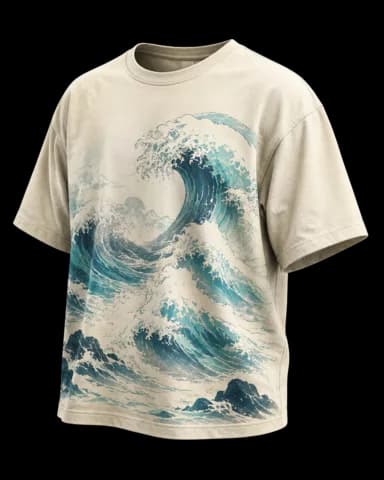
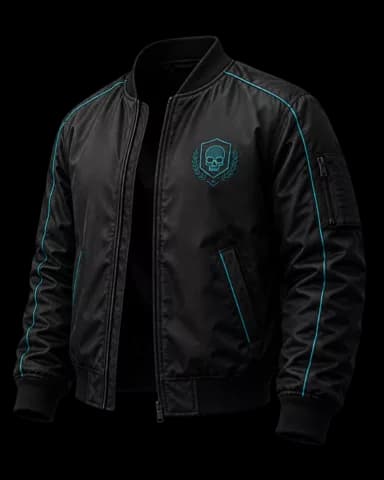
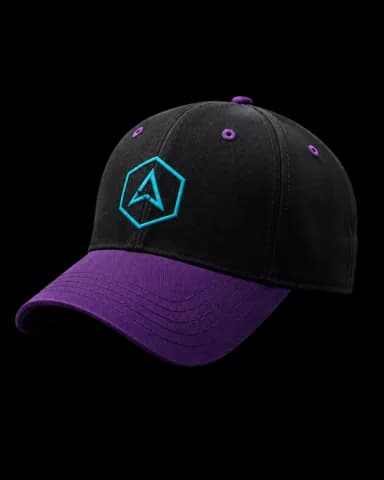
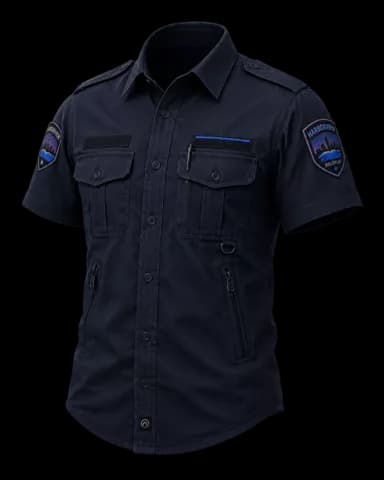
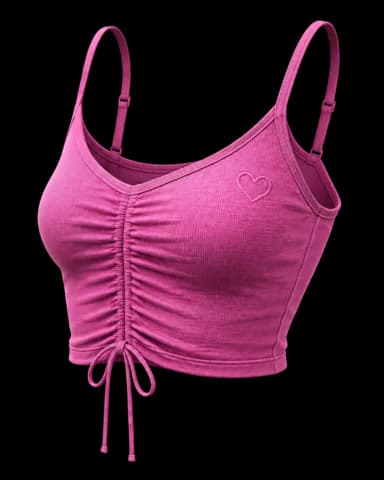
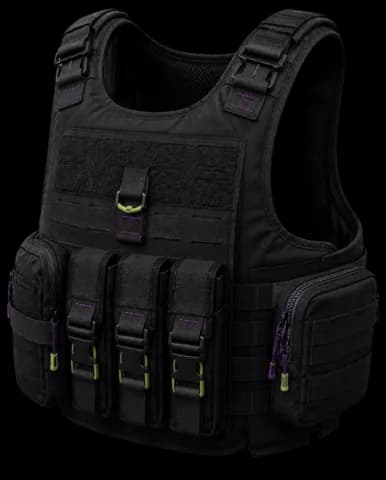
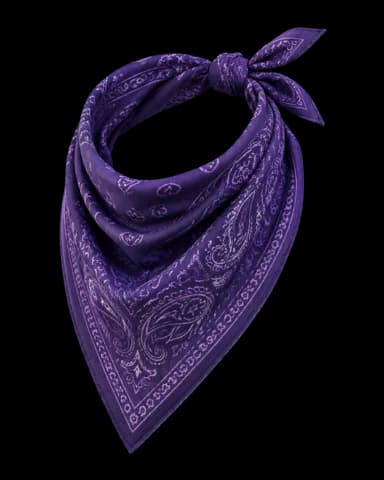
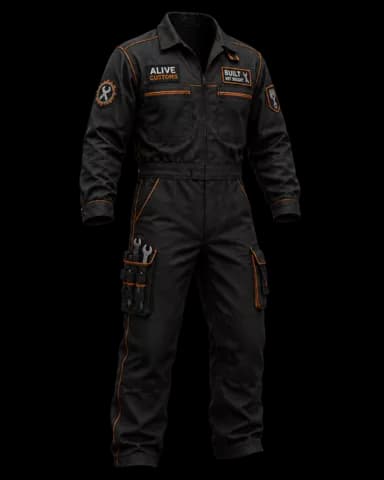
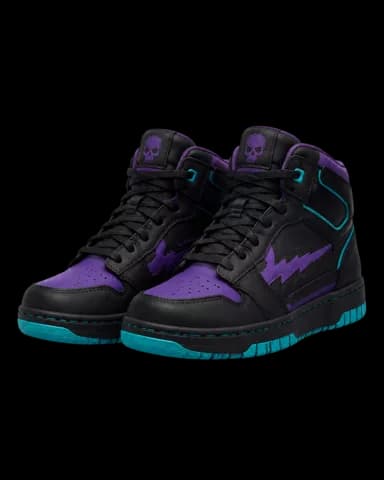
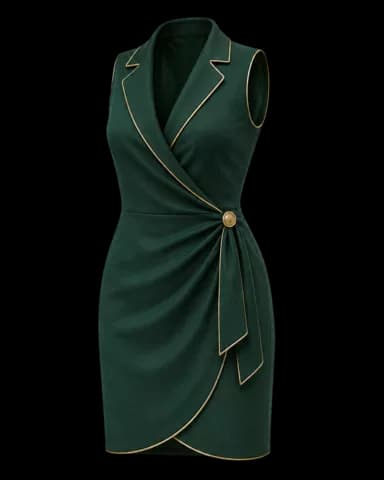
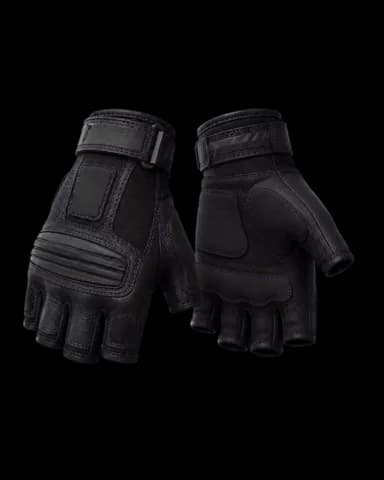
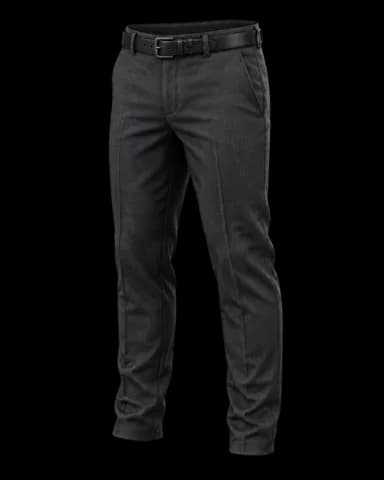
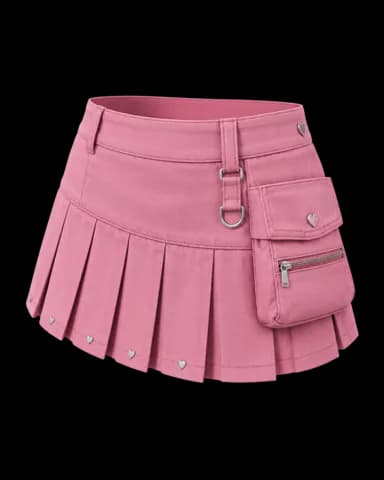
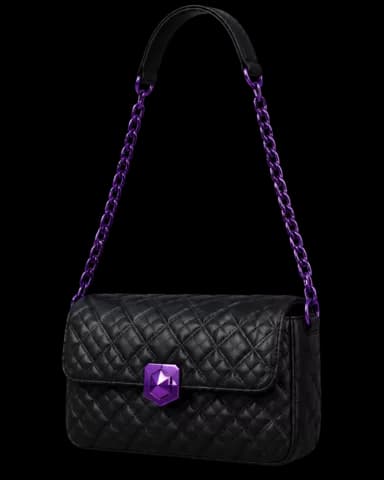
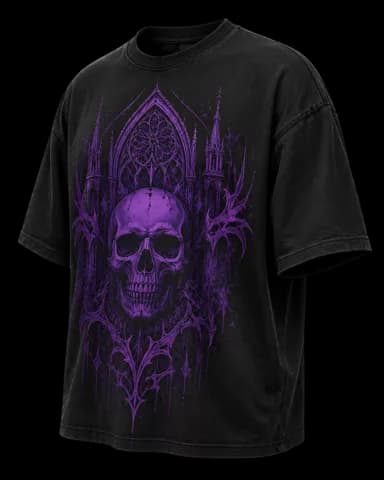
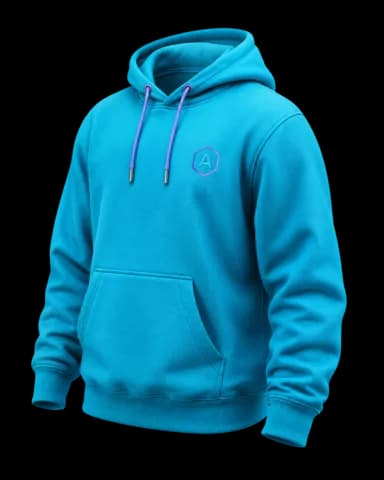
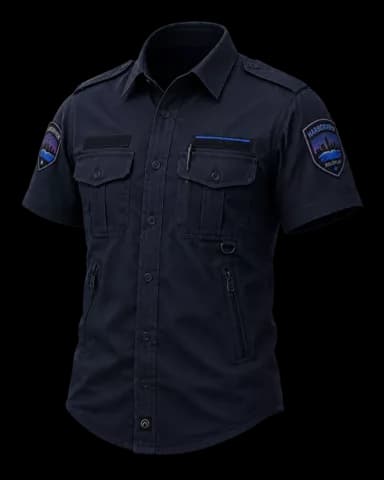
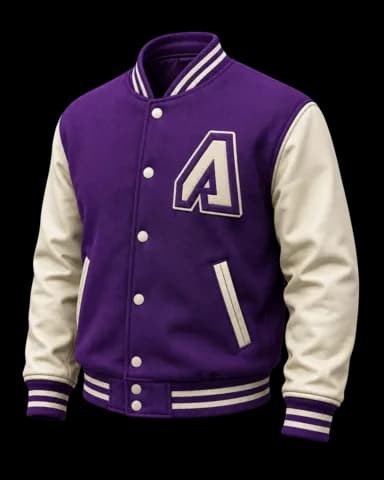
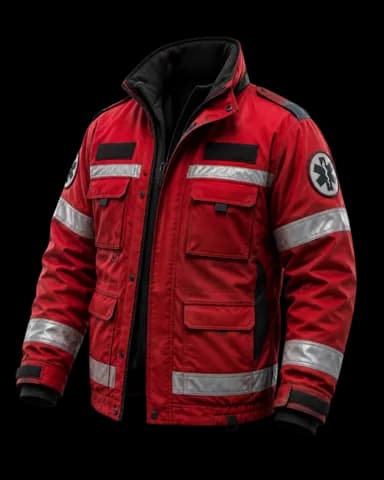
- Coordinated outfit sets
- Department uniforms
- Faction variants
- Server-wide collections
Every item starts as a blank canvas.
Step-by-step guide
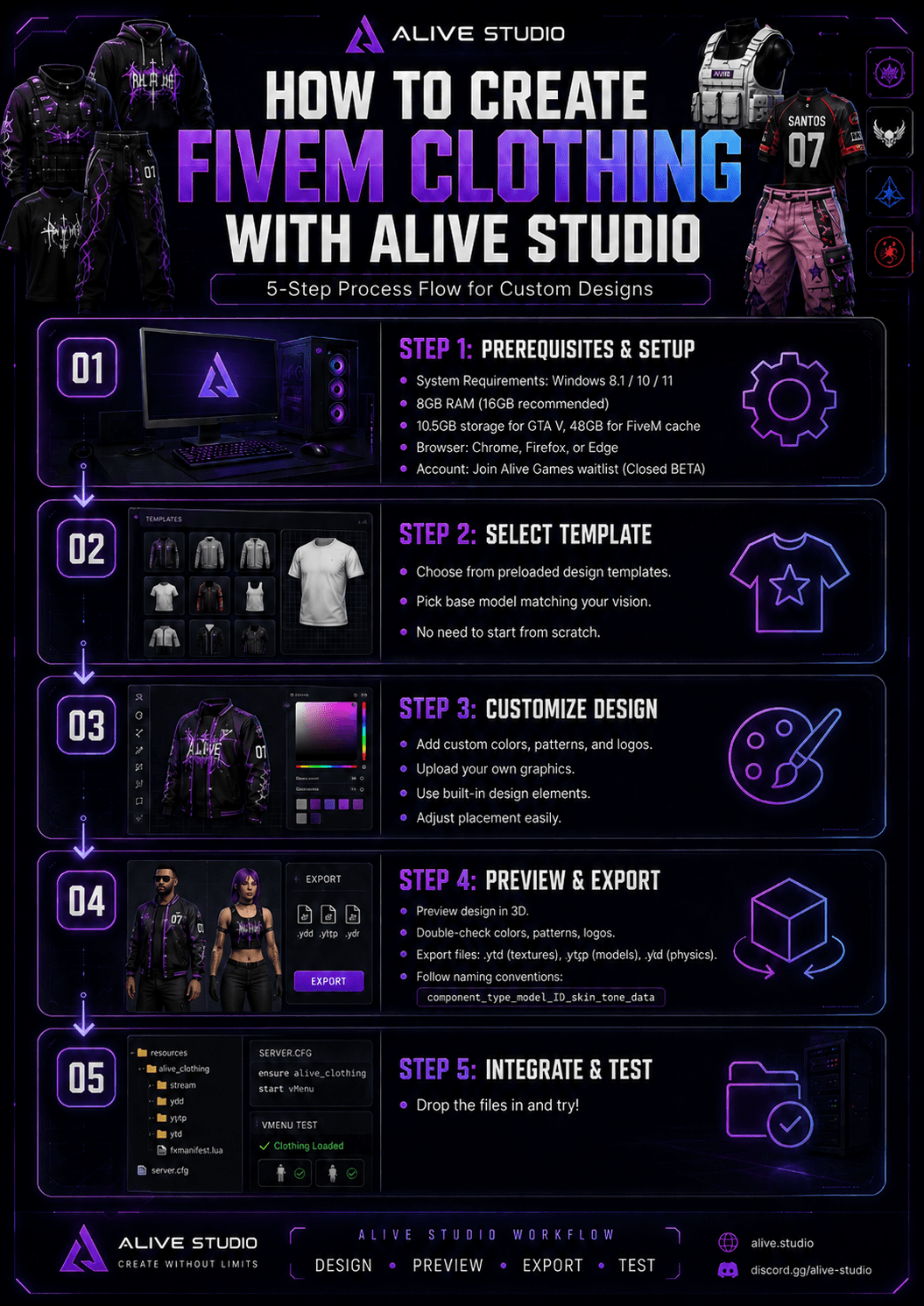
Create FiveM custom clothing in five steps
1. Select a template or base model
Decide whether you are making a shirt, pants, vest, gang outfit, uniform, or another clothing piece. Choose the preloaded base model that best matches the item you want to create, so you can begin with a usable clothing shape instead of designing from scratch.
2. Customize the item in Alive Studio
Add colors, patterns, logos, and graphics to the selected template. Use the editor to adjust their placement and build a look for the intended roleplay character, department, crew, or server collection. You can also use Alive's built-in design elements to develop the item without uploading every detail yourself.
3. Preview before finalizing
Use the 3D preview as the last check before export. Review colors, patterns, logos, and overall placement. If something does not look right, return to the editor, make the adjustment, and preview it again before you create the final asset.
4. Export the clothing files
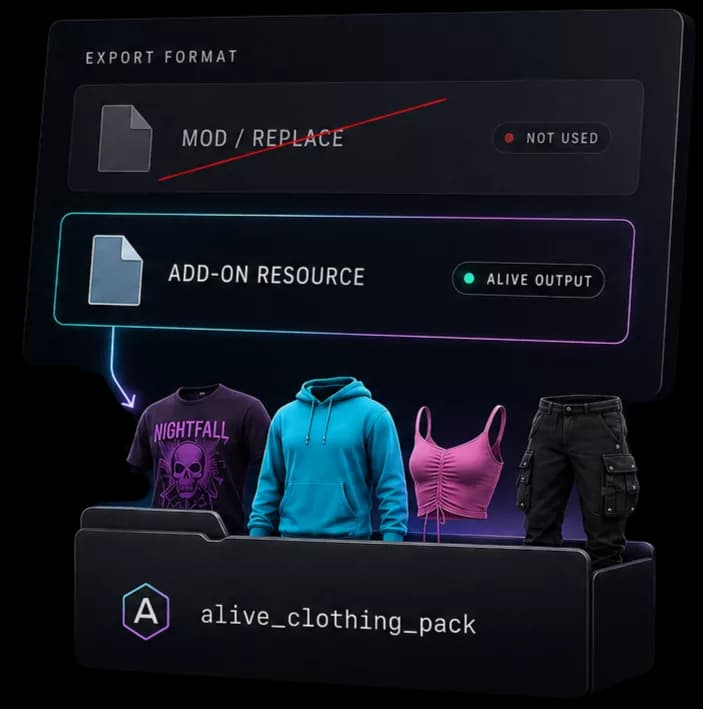
Export the finished design from Alive Studio. FiveM clothing assets commonly include
.ytdtexture files and.ytypmodel files. Clothing with mesh physics can also use.yldfiles. Keep every model and matching texture together before you install the resource.Follow FiveM naming conventions exactly. Component names can use a format such as
jbib_000_ufor a top, while props can use a pattern such asp_eyes_000. Match a texture to its model with a corresponding name such asaccs_diff_000_a_uni.5. Name and organize the resource
Create a lowercase resource folder such as
custom_clothingoradmin_staff_vests. Place the exported.ytdand.ytypfiles in itsstream/directory, addfxmanifest.luaat the root, and addensure custom_clothingtoserver.cfg. Clear names and a tidy resource reduce missing-item and texture-conflict problems.6. Test it in FiveM
Connect to your server and use your character customization tool to locate the new clothing item. Test standing, walking, sitting, animations, and props such as hats or glasses. Check male and female freemode models when your resource supports both, because fit and alignment can differ.
Troubleshooting
Fix common FiveM clothing problems
- Clothing does not appear
- Double-check the filenames, make sure models and textures match, confirm the files are in the resource stream directory, and verify the resource is enabled in
server.cfg. - Textures are black or invisible
- Check the texture format, compression, dimensions, and export process. Re-import the texture and confirm it retains its intended resolution.
- The item stretches or is misaligned
- Review the UV mapping and make adjustments before exporting again. Test multiple animations because some fit problems are only visible while the character moves.
- The skin tone is wrong
- Verify the prop mask value in your configuration files. The legacy workflow uses values such as 17, 19, or 21 for this check.
- The resource conflicts with another pack
- Use unique identifiers, check the
fxmanifest.lua, and look for another resource that may define the same files or clothing slots.
From first template to a server-ready clothing resource
Creating custom FiveM clothing follows a repeatable path: choose a template, customize it in the browser, preview the result, prepare the FiveM files, and test the resource in-game. That makes the process approachable whether you are creating a first hoodie or planning a full server clothing line.
The final test matters as much as the design. Once the exported files are correctly named and installed in the resource structure, you can check the item in character customization and refine the fit before releasing it to your players.
Build your server wardrobe
Explore FiveM clothing ideas and workflows
One payment, unlimited possibilities
Unlimited custom clothing for the price of one
Create every clothing item your FiveM server needs without paying again for each new design.
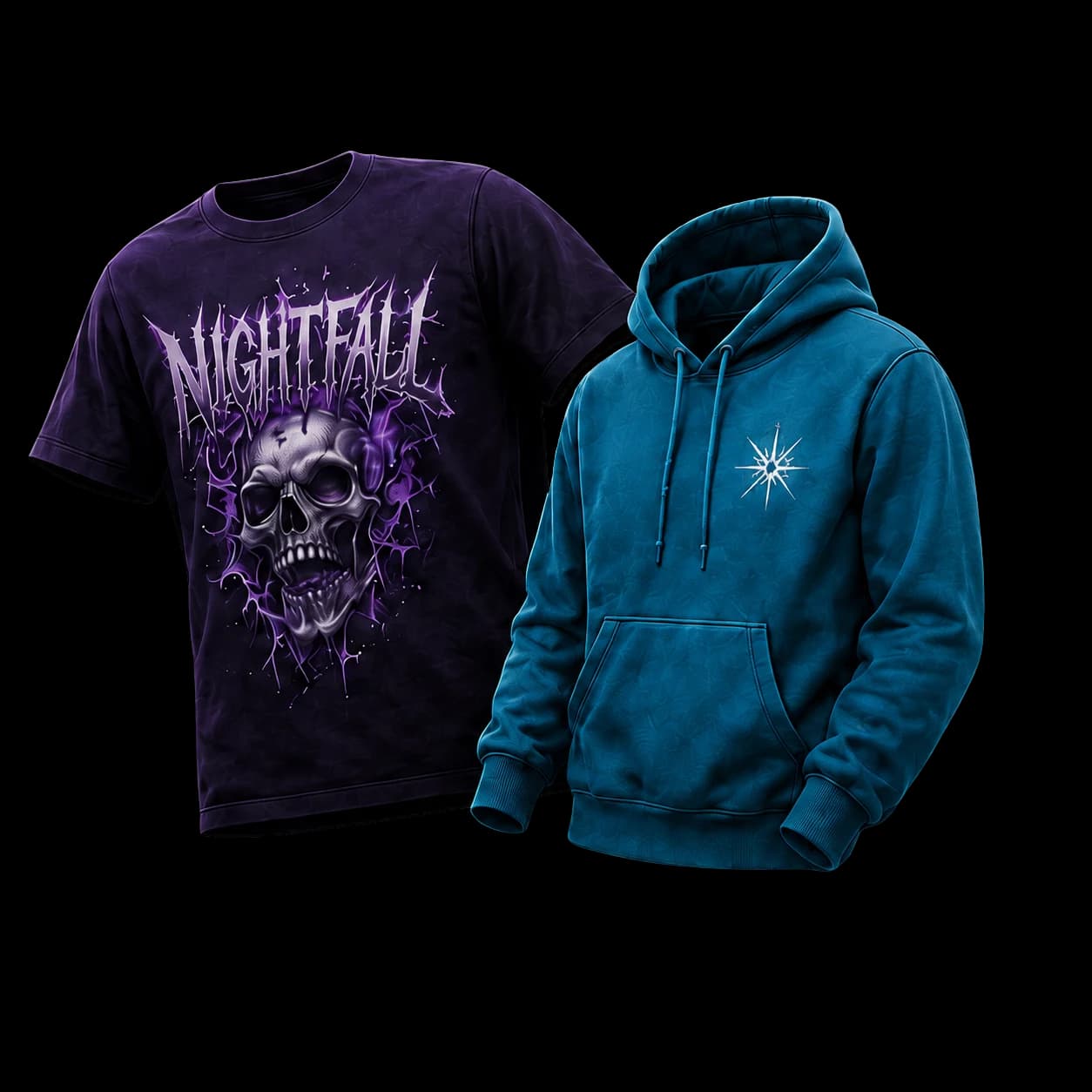
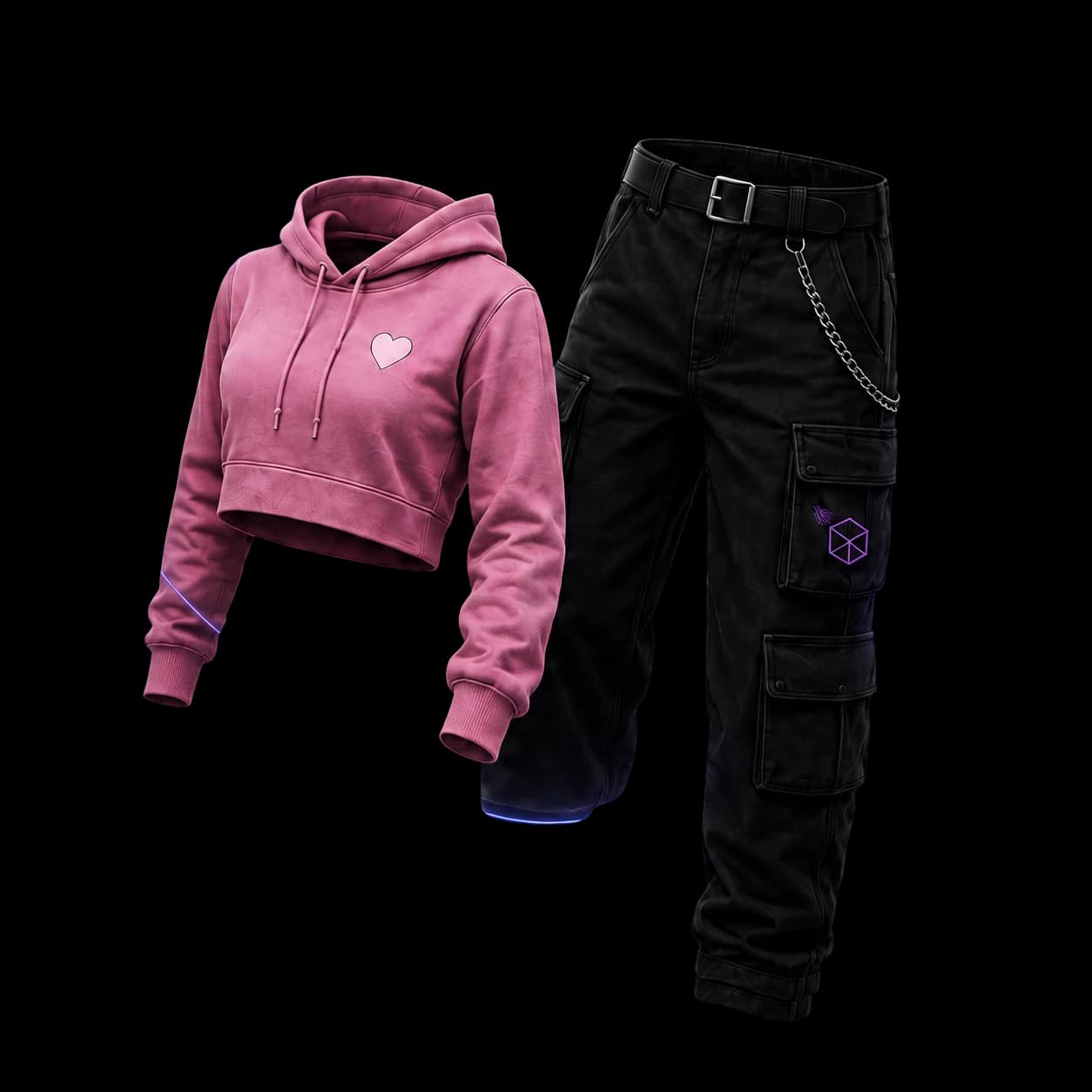
One shirt price. Every item you need.
FiveM clothing FAQ
Answers to common questions about creating, exporting, and testing custom FiveM clothing.
Use FiveM-compatible names that match the model and texture pair. For example, a model can use mp_m_freemode_01_dc^teef_000_u.ydd and its texture can use mp_m_freemode_01_dc^teef_diff_000_a_uni.ytd. Replace identifiers such as teef and 000 consistently so your assets do not conflict with other items.
Check that the filenames match, the files are in the resource stream directory, and the resource is included in server.cfg. Re-import the files if needed, test again in-game, and check for conflicting resources or outdated software.
No. Alive Studio provides a browser-based workflow for starting from a clothing item, customizing its look, previewing it, and preparing it for your FiveM server.
Open Alive Studio, choose a clothing item or template, customize and preview the design, then use the FiveM export workflow to prepare your server resource.