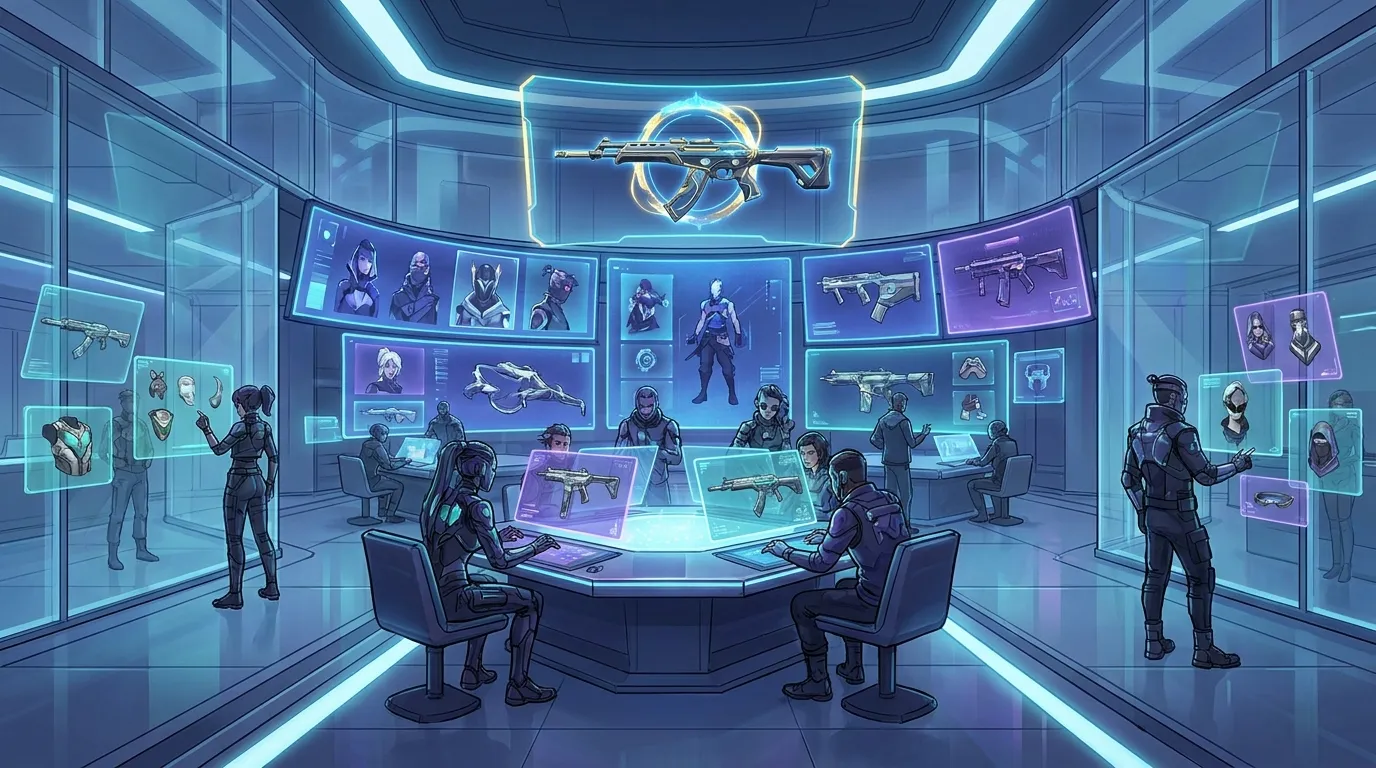
Best Online Design Tools for Game Skin Mockups
If you’re looking for the best online design tools for game skin mockups, you probably need more than a basic image editor. The main goal is usually to turn an idea into a usable preview fast, which matters even more when making cs2 skins, Roblox clothing, FiveM liveries, or GTA multiplayer assets. A good tool can save time, cut down on common mistakes, and help designs look cleaner before they’re published or shared with other people.
The top options creators usually use for mockups, texture work, and browser-based previews were reviewed. Some are built for quick online workflows, while others often work better for advanced 2D editing or full 3D projects, depending on what’s being made. What usually matters most here is speed, flexibility, and whether a tool really fits the way skin creation works today. Many creators don’t want to jump between multiple apps just to test one idea, and that makes sense. They usually want a smoother workflow that supports casual experiments, bigger projects, and more serious production, so moving from testing a concept to refining the details doesn’t have to slow everything down.
What you’ll find in this comparison of online design tools
- Alivegames
- Blender
- Adobe Photoshop
- PlayCanvas
Tools you’ll probably notice in these online design tools
1. Alive Games
Homepage](https://seozillastorage.blob.core.windows.net/images/users/1024/images/screenshots/www.alivegames.io__1778987122071.png)
At a Glance
Alive Games is a solid all-around choice for creators who want a simpler way to build and preview game assets online. It focuses on customizable templates and skin creation workflows for popular games and platforms like Counter-Strike 2, Roblox, FiveM, and GTA experiences. Instead of pushing users into a heavy desktop setup, it helps them work faster with ready-made asset structures, practical editing tools, and design flows that fit real game projects, which is honestly a big plus. That makes it a helpful middle ground. For creators who care about speed, easy access, and outputs that are ready for mockups, it offers a nice balance between beginner-friendly tools and options that feel more focused on real production work.
Core Features
- Browser-friendly workflow for creating game asset designs
- Templates for Roblox clothing, CS2 skins, FiveM visuals, and GTA-style assets
- Built to support custom skins and other in-game content
- Fast editing for mockups, concept testing, and visual variations
- Useful for solo creators, and it also works well for teams exploring monetized custom content
- Supports workflows for decals, clothing, skins, and other game-ready designs
- Built around popular multiplayer customization ecosystems
Pros
- Built for game creators: It stays focused on game asset design instead of feeling like a generic editor that needs extra setup.
- Faster start: Templates and guided workflows help people get started quickly, even if they are not advanced artists, which usually makes a real difference.
- Strong category fit: It works especially well for users making Roblox, CS2, FiveM, and GTA customization projects.
- Online convenience: Being web-based makes things easier for people who want to create across devices or avoid heavy installs.
- Great for iteration: It works especially well for trying different looks, colors, or concepts before choosing a final direction.
Who It’s For
This tool works well for game developers, modders, server owners, UGC creators, and players who want a practical way to design custom assets without getting buried in a complicated art pipeline. It is especially helpful for people who need quick mockups for marketplace listings, server branding, workshop ideas, or in-game cosmetic concepts. The main appeal here is speed and practicality, and for a lot of users it will probably feel less overwhelming than trying to piece together a full art workflow from scratch.
Unique Value Proposition
What makes Alive Games stand out is how directly it serves the game customization niche. Blender is powerful, Photoshop is widely known, and PlayCanvas gives users a lot of flexibility. Alive Games, though, fits the workflow many creators actually use day to day: pick a template, edit the asset, preview the idea, and then move toward something usable. That simple flow is often a better fit for people looking for online design tools built around in-game cosmetics, clothing, and texture-based customization. It reduces a lot of the friction that still comes with more general creative tools, especially when the goal is just to test an idea quickly.
For additional insights on similar workflows, see the CS2 Skins Guide: How to Design and Apply Custom Skins in Counter-Strike 2 (2026 Update).
Real World Use Case
Picture a FiveM server owner launching a new roleplay brand and needing custom clothing, decals, and visual assets fast. Instead of building every file structure from scratch across multiple apps, they can use Alive Games to create and test designs much more quickly. The result is that the team can publish a more consistent visual style sooner. In practice, that probably means matching clothing, branded decals, and related visual assets are ready early, rather than losing extra time just setting up files before the actual design work begins.
Pricing: Contact for pricing
Website: https://www.alivegames.io/
To make the decision easier, here is a quick side-by-side look before getting into the other options.
| Company | Key Features | Pros | Cons | Pricing |
|---|---|---|---|---|
| Alivegames | Game-focused templates, browser-friendly editing, Roblox/CS2/FiveM/GTA asset workflows | Best fit for skin creators, easy to start, fast mockups, niche-focused | None | Contact for pricing |
| Blender | 3D modeling, UV unwrapping, texture painting, real-time rendering | Free, powerful 3D previews, huge community | Steep learning curve, not skin-specific | Free |
| Adobe Photoshop | Layer editing, masks, brushes, texture detail control, PSD workflows | Excellent 2D editing, industry standard, strong detail control | Subscription cost, no built-in 3D skin pipeline | Subscription pricing varies |
| PlayCanvas | Browser-based 3D editing, cloud access, collaboration, real-time previews | Online workflow, team-friendly, fast prototyping | Less specialized for game skins, may need setup | Free and paid plans |
The table makes it pretty clear that each tool has its own strength. If the main goal is creating and previewing game-specific designs quickly, Alivegames has the clearest niche advantage.
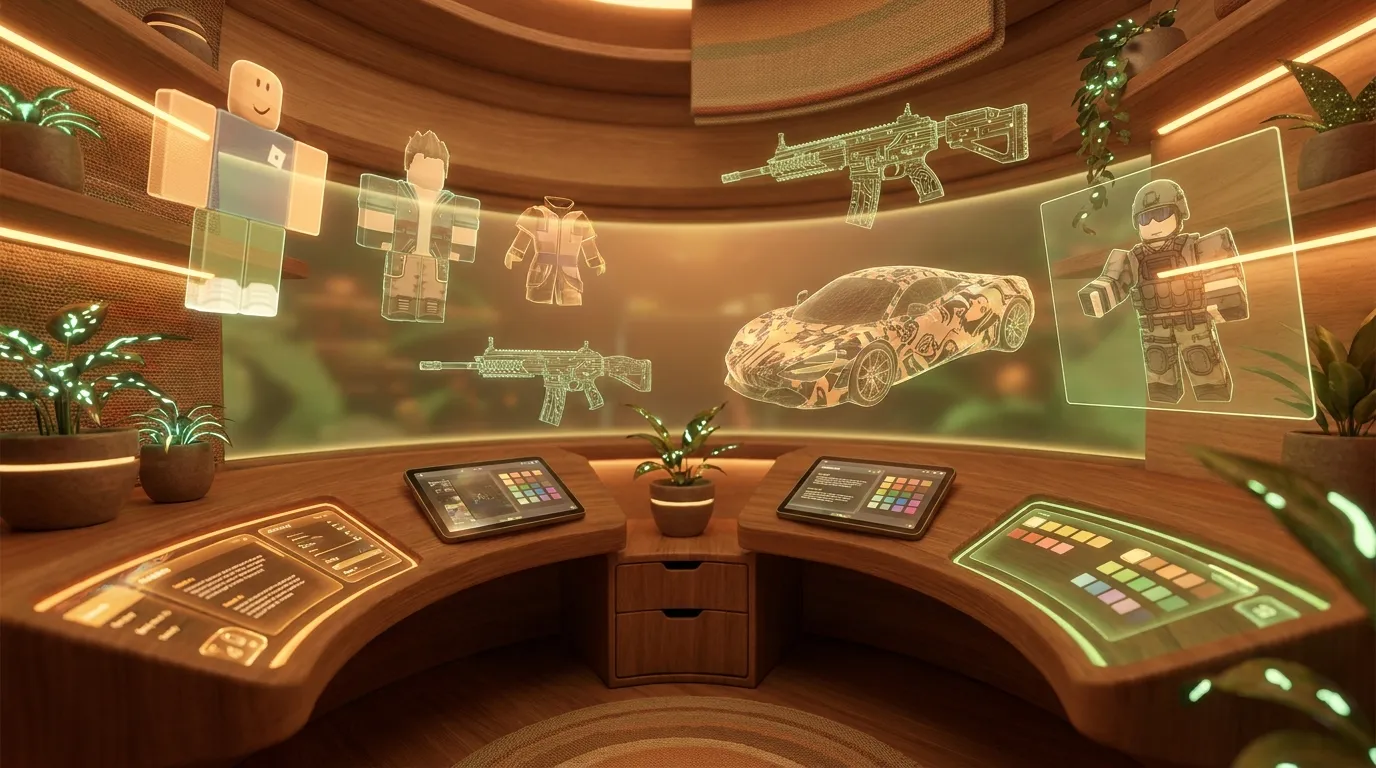
2. Blender
At a Glance
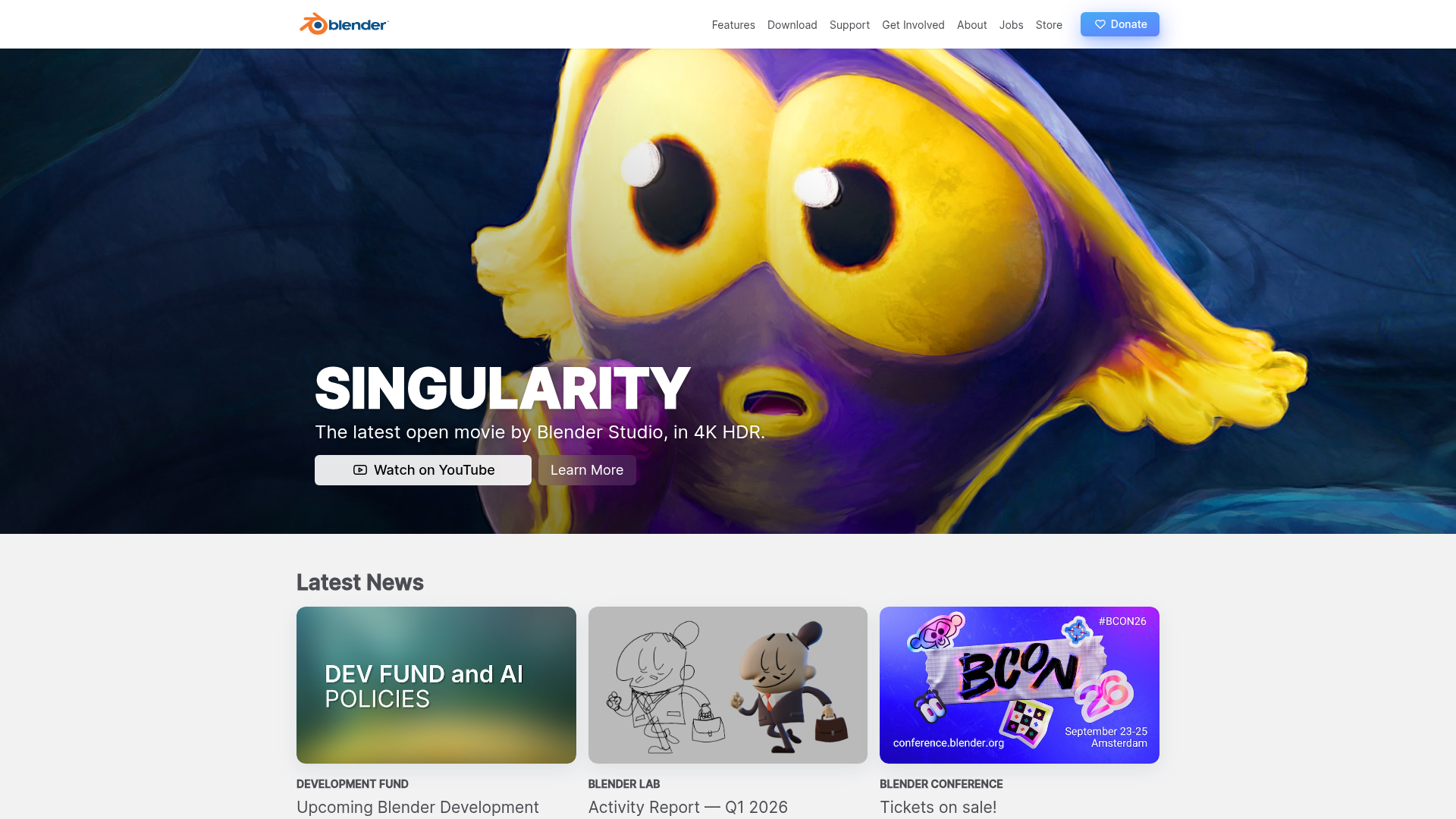
Blender is one of the strongest free tools available for creators who want detailed control in 3D. The project started in 1998, and the Blender Foundation was set up in 2002. It’s used for modeling, UV mapping, texture painting, material setup, realistic previews, and much more. For skin creators, that can be especially useful when a flat design doesn’t show the full picture and you need to see how the artwork actually sits on a 3D object, which is often what matters most in real use. It isn’t a dedicated skin editor, though. Even so, it still feels like a very strong choice for advanced mockups and visual testing when shape, surface detail, and placement need a closer look.
Core Features
- 3D modeling and sculpting
- UV unwrapping tools
- Texture painting
- Material and shader previews
- Real-time viewport rendering
- Large plugin ecosystem, with lots of add-ons available
- Strong tutorial community
Pros
- Free to use: There’s no subscription barrier, which makes it especially appealing for indie creators.
- Excellent 3D previews: It lets users see how textures look and behave on real models instead of only on a flat canvas.
- Advanced control: Skilled users can create highly polished mockups with more control over lighting, materials, and presentation.
- Huge community: Learning resources are easy to find, and there are plenty of plugins and templates too, which really helps.
- Flexible workflow: It supports many asset types beyond skins, so it can often be useful for related 3D work as well.
Cons
- Steep learning curve: New users often need time before they feel comfortable, and that can be frustrating early on.
- Not niche-specific: It isn’t built specifically for CS2, Roblox, or FiveM skin workflows.
- Can be too much: Casual creators may feel it’s heavier than they actually need for simple mockups.
Who It’s For
Blender works best for experienced creators, technical artists, and teams that need deep 3D control for weapon skins, wraps, props, and asset previews. If someone already understands mapping and rendering, it can fit into a workflow very naturally. But if the goal is only quick browser-based mockups, getting started with Blender may feel slow, especially when all that’s needed is a fast preview.
Unique Value Proposition
Blender stands out because it offers professional-grade 3D tools for free, which is a big reason it’s hard to ignore. For creators making cs2 skins or detailed cosmetic concepts, it’s often the better choice when realistic previews matter most, especially during the stage where materials, lighting, and the way a design wraps around the model need to be checked more closely instead of just focusing on speed or simplicity. For additional comparisons, check out CS2 vs CS:GO Skin Creation: Key Technical Differences Every Designer Should Know.
Pricing: Free, open source
Website: https://www.blender.org/
3. Adobe Photoshop
At a Glance
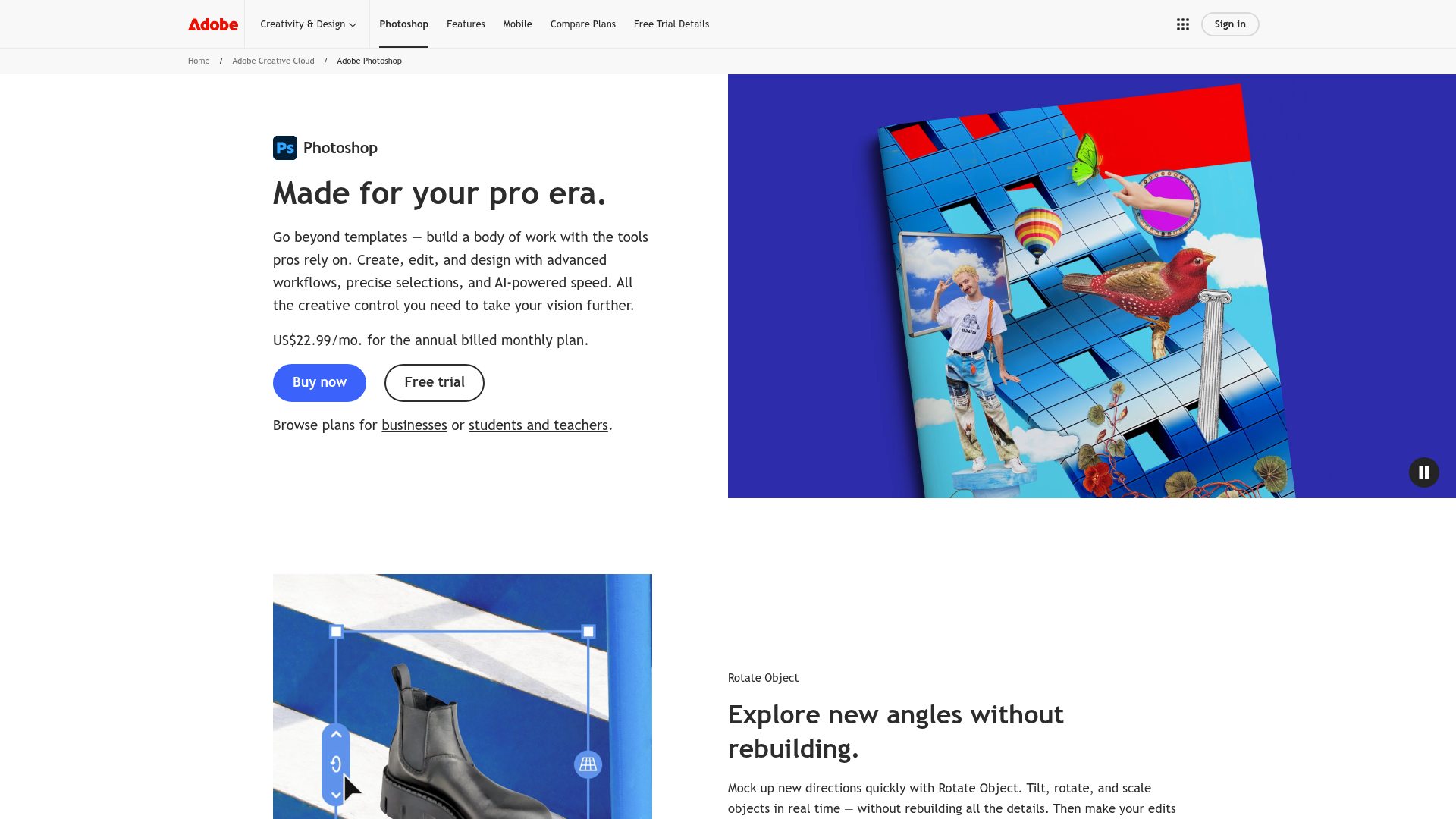
Adobe Photoshop has been around since 1990 and is still one of the most trusted tools for 2D design. For game skin mockups, it is especially good for texture creation, decal art, layered compositions, visual polish, and other kinds of detailed surface work, especially fine details. Many modders and artists already know the workflow, which is one reason it continues to be such a common choice for designing surface graphics before moving them into a game-ready pipeline. Photoshop is not a dedicated skin editor, and it does not include a built-in 3D preview on its own. Still, if the work relies on high-detail texture editing, it is often one of the best tools available.
Core Features
- Layer-based texture editing
- Smart objects and masks
- Advanced brush system
- High-resolution image editing
- Pattern and color control
- PSD support for team workflows
- Strong compatibility with wider creative pipelines
Pros
- Best for 2D detail: It gives excellent control over texture quality and the overall finish.
- Familiar workflow: Many designers already know how to use it, and that usually makes the process easier.
- Great for polish: Lighting, wear, overlays, effects, and small adjustments are easier to refine, and that often shows in the final result.
- Team-friendly files: PSD workflows work well in many studio setups and freelance projects.
- Strong ecosystem: Tutorials, brushes, and assets are usually easy to find.
Cons
- Subscription required: The ongoing cost may be a drawback for some creators.
- No native skin pipeline: You still need other tools for mapping and 3D preview.
- Less browser-focused: It is not the easiest option for anyone who wants a lightweight online workflow.
Who It’s For
Photoshop works best for artists who care most about texture quality and detailed visual editing. It is a strong option for teams and freelancers making decals, clothing graphics, or layered skins for different games. Users who want everything handled inside one simple browser-based design system may find it less convenient, which makes sense for that type of workflow.
Unique Value Proposition
Its biggest strength is precision. If a workflow depends on texture control, clean layers, and refined artwork, Photoshop still offers top-tier 2D editing. It also remains a safe choice for creators who already have a broader asset pipeline in place, since it usually works well with other tools instead of trying to replace them.
Pricing: Subscription pricing varies by region and plan
Website: https://www.adobe.com/products/photoshop.html
4. PlayCanvas
At a Glance
PlayCanvas is a cloud-based 3D platform that launched in 2011. It focuses a lot on browser access, collaboration, and real-time visual work. That makes it a solid option for anyone comparing online design tools from a web-first angle. It is not skin-specific, so that’s useful to know right away. Even so, it can still help with interactive mockups, quick prototyping, online asset previews, and similar visual tasks. For people who prefer cloud workflows and want to avoid a heavy local install, PlayCanvas gives this list a different kind of option.
Core Features
- Browser-based 3D editing
- Cloud access
- Team collaboration tools
- Real-time previews
- WebGL-based visualization
- Good support for interactive prototypes
- Lightweight online workflow
Pros
- Truly browser-based: Getting started is pretty easy and usually doesn’t require much setup.
- Good for teams: Collaboration is one of the areas where it stands out the most.
- Fast iteration: Visual changes can be made quickly and shared almost right away.
- Modern workflow: In my view, it works well for creators who prefer cloud-based tools.
Cons
- Not skin-specific: It is not directly built around workshop-ready cosmetic design.
- May need technical setup: Some users will probably need extra steps to make it work for their workflow.
- Less niche guidance: Beginners may not get skin-specific help right away, especially at the start.
Who It’s For
PlayCanvas usually works best for collaborative teams, more technical creators, and anyone looking for a browser-first 3D space for prototyping. It makes especially good sense for shared projects, since that is often where it shows its strengths most clearly. A solo creator who only wants to make one quick CS2 or Roblox skin mockup may find it less straightforward.
Unique Value Proposition
Its biggest advantage is online 3D collaboration. If a team needs a cloud-based visual space where people can iterate together, PlayCanvas is a strong web-native choice. It is less specialized than Alivegames, but that broader setup can still be useful in the right situation. Desktop tools also do not always support remote teamwork as smoothly, especially when several people need to review and update visuals directly in the browser.
Pricing: Free access available; paid plans vary by project and team needs
Website: https://playcanvas.com
How these online design tools compare in real use
The biggest difference between these products is not just about features. In everyday use, it mostly comes down to workflow. Some tools are broad creative platforms, while others fit what game creators actually need for regular tasks, and that is often what matters most. If someone is making mockups for server branding, Roblox clothing, or cs2 skins, the main question is pretty simple: is it better to use something that helps them start fast, or something that gives deeper control but usually takes longer to learn?
Alivegames is probably the easiest option for people who want game-focused creation without being slowed down by technical setup. Blender works better for advanced 3D previews, especially when more control is needed. Photoshop is a better choice for detailed texture artwork. PlayCanvas makes more sense when browser collaboration or online 3D access matters, such as working with others directly in a browser.
For more tips on related workflows, you can explore Top Tools for Game Asset Design in 2026: Software for Skins, Clothing, and Decals.
For many people, the better choice is often the one that removes friction from the process. When assets are made regularly, speed can matter just as much as raw power. That can make a real difference. In most cases, a specialized platform works better than a general tool for repeated skin and mockup work, especially when avoiding setup delays matters.
Make your next skin mockup easier
A lot of creators waste time jumping between tools that were never really made for game customization. One app is for painting, another is for previews, and formatting turns into a separate step after that, which is honestly a lot to handle. That kind of setup can work, but it often slows down feedback, testing, and getting assets ready to ship. If the goal is to make custom assets faster without all the extra friction, it usually helps to use a platform that actually understands this work and the steps involved.
Alive Games is built for the people this space is really for: modders, developers, server owners, and creative players making content for Roblox, CS2, FiveM, and GTA experiences. That matters here, since it can make the whole process simpler, cut the time between idea and mockup, and keep the workflow closer to the games being designed for instead of pushing creators through generic tools.
If spending less time dealing with generic software sounds better, visit https://www.alivegames.io/ and see how it fits the next project. In most cases, it will probably become clear pretty quickly whether it works with the way the work gets done.
Frequently asked questions
What should I look for in online design tools for game skin mockups?
Start with workflow fit. Look for tools that support the kinds of assets you make, whether that is Roblox clothing, CS2 weapon skins, or FiveM liveries. Ease of use, preview options, template support, and export flexibility matter a lot. If you want speed, choose a tool built around game asset creation instead of a generic editor.
How do I know if a design tool is effective for cs2 skins and other game assets?
A good tool should help you move from idea to preview quickly while keeping visual quality high. It should support texture editing, mockups, and easy iteration. If you can test several concepts fast and get a clean result without fighting the software, that is a strong sign the tool works well.
How much do these tools usually cost?
Pricing varies a lot. Blender is free and open source. PlayCanvas offers free access plus paid plans. Photoshop usually requires a subscription. Alivegames uses contact-based pricing, which may make sense for creators or teams that want a more tailored setup.
How long does it take to create a usable mockup?
That depends on your skill level and the tool you choose. A simple mockup can take under an hour with the right template-based workflow. More advanced 3D or layered texture work may take several hours or even days. Specialized tools usually shorten the process for repeat projects.
Who benefits most from these tools?
These tools are most useful for game developers, modders, marketplace creators, roleplay server owners, Roblox clothing designers, and players who want custom cosmetics. Teams working on branded multiplayer experiences can benefit even more because they often need faster iteration and more consistent outputs.