AI Shirt Photobash
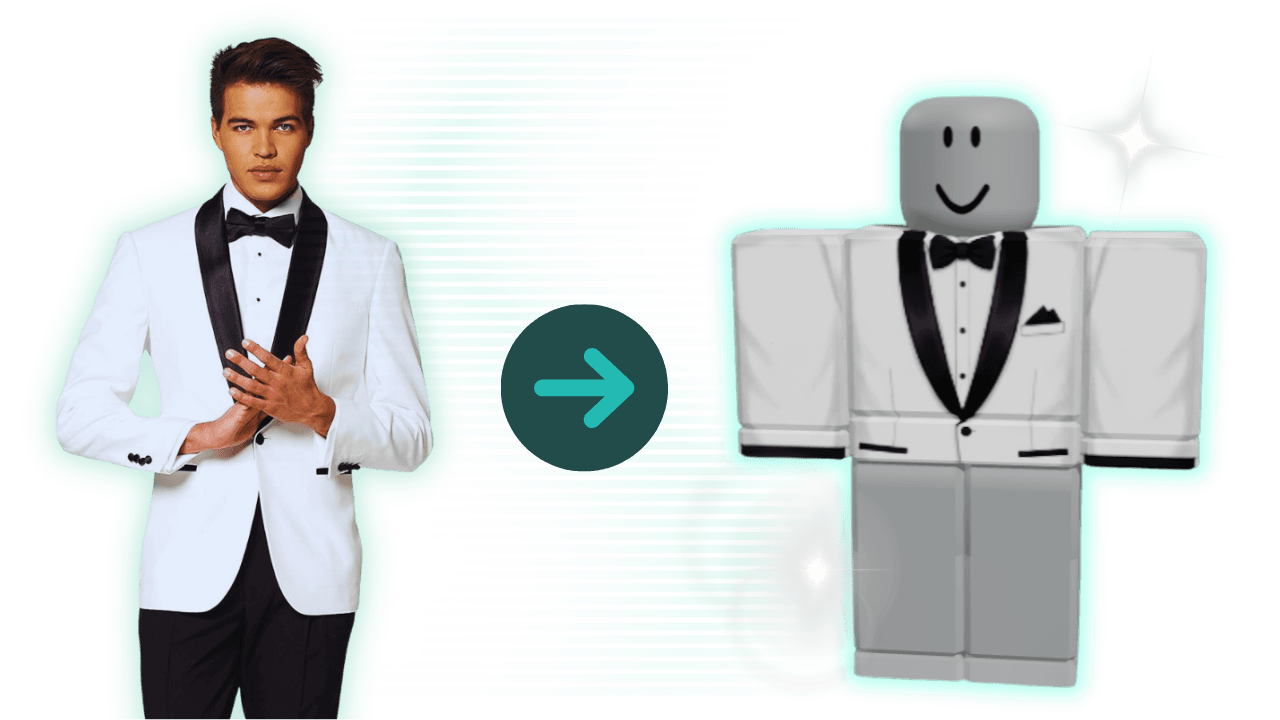
Turn any image into a Roblox-ready shirt.


Get unstuck on shirt templates, pants templates, uploads, size checks, and figuring out which Roblox clothing workflow to open next.
Roblox UGC tools
From AI-generated templates to real-time testing, create professional UGC faster. All in your browser.
Turn any image into a Roblox-ready shirt.
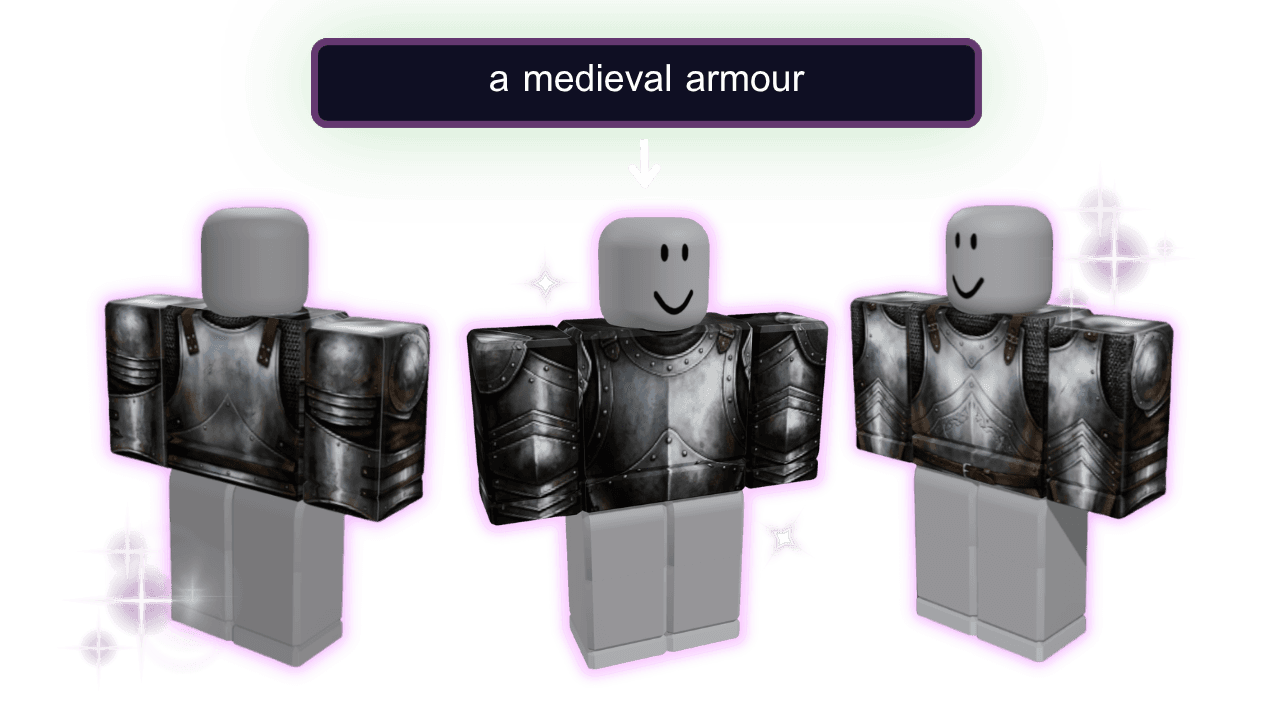
Generate templates from text descriptions using AI.
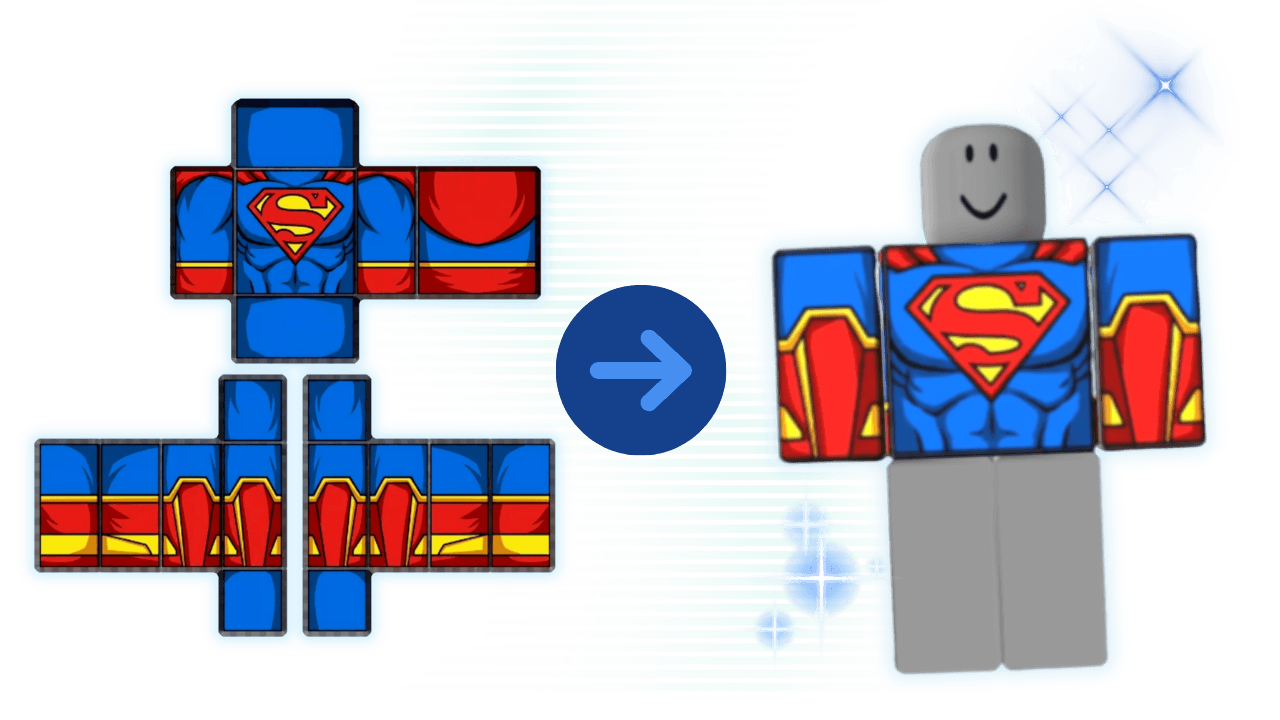
Preview shirts and pants on avatars before uploading.
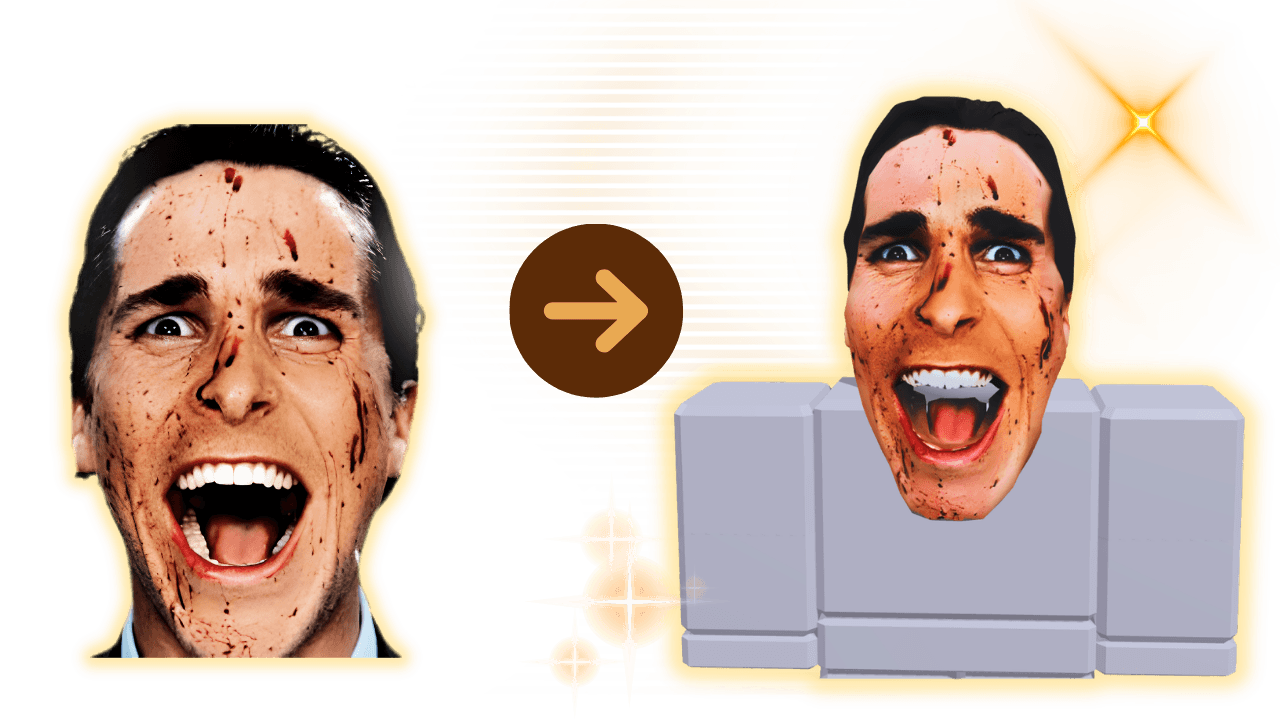
Create custom heads from photos with AI.
Use the help page to decide whether your next step belongs in the template, maker, or pants workflow.
Handle upload questions, template-size confusion, and classic-clothing mistakes here instead of sending every beginner problem to a sales page.
Once the question is answered, jump back into the template, maker, or pants workflow that best matches what you need to finish next.
Start with support when the blocker is size, upload, or route confusion, then move back into the workflow that matches your job.
Start here when you are not sure whether the problem is template size, upload prep, pants-vs-shirt confusion, or choosing the wrong workflow.
Use the support guidance to sort out the shirt template, pants template, export, preview, or upload question that is slowing you down.
Once the blocker is clear, move to the template page for layout basics, the maker page for faster design, or the pants page for lower-body work.
Use this support layer when you need clarity before you go back into the editor.
A lot of Roblox clothing frustration comes from using the wrong layout or starting with the wrong size assumptions.
Most upload issues are small workflow mistakes that are easier to catch before you publish.
Once the problem is clear, use the route that matches the job instead of making one page do everything.
Use this support route to solve the blocker, then move into the template, maker, or pants page that fits the job.
Watch Demo Video →Use the help page when you need workflow guidance, upload advice, or route-selection help. Use the template page when you already know you need the blank Roblox shirt layout and size basics.
Yes. This is the right place to sort out shirt template size, panel confusion, export checks, and the small upload mistakes that usually slow beginners down.
Go to the dedicated Roblox pants template page. Pants need their own layout and should not be squeezed into the shirt workflow.
Use the maker page when your intent is to design clothes online and keep moving. This help page exists so support questions have a clear home instead of crowding the commercial pages.
When the blocker is gone, jump straight into the maker and keep moving toward a finished Roblox clothing asset.