AI Shirt Photobash
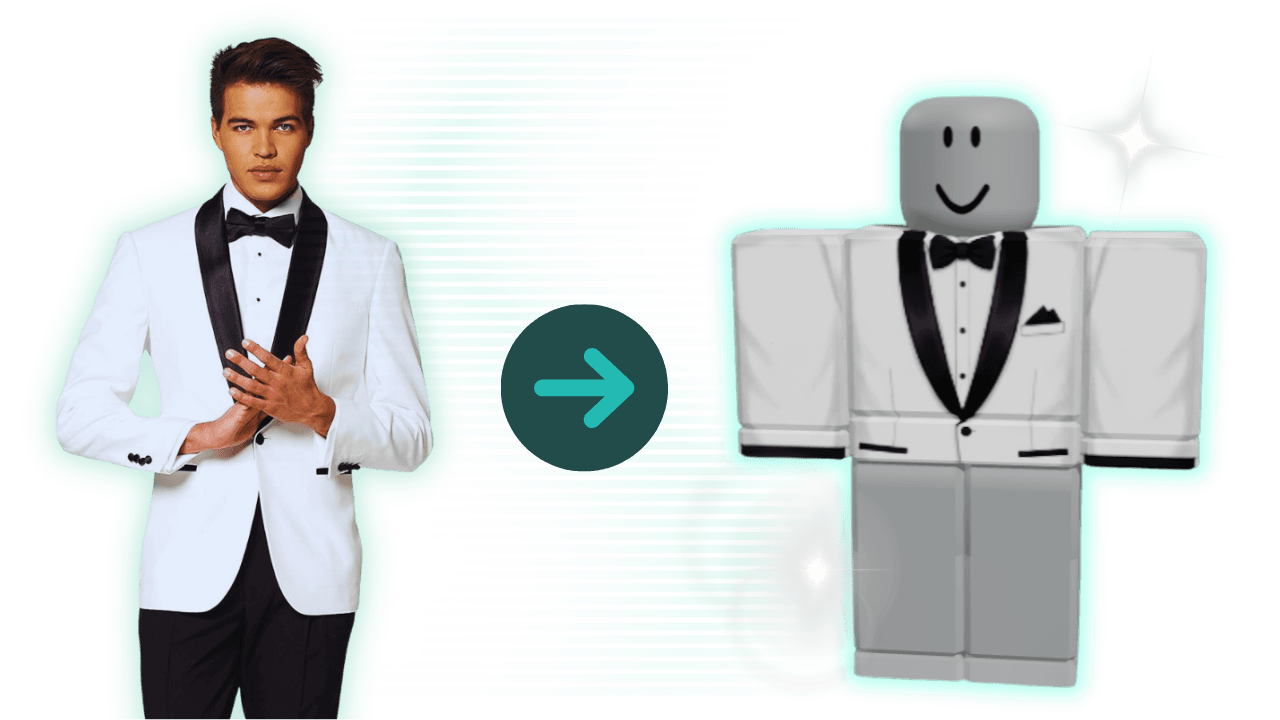
Turn any image into a Roblox-ready shirt.


Start with the Roblox pants template when you need lower-body layout guidance, matching bottoms, and a cleaner way to build a full fit without forcing pants work into a shirt page.
See how Alive helps you build matching Roblox pants, preview the lower-body fit, and keep the full outfit consistent.
Roblox UGC tools
From AI-generated templates to real-time testing, create professional UGC faster. All in your browser.
Turn any image into a Roblox-ready shirt.
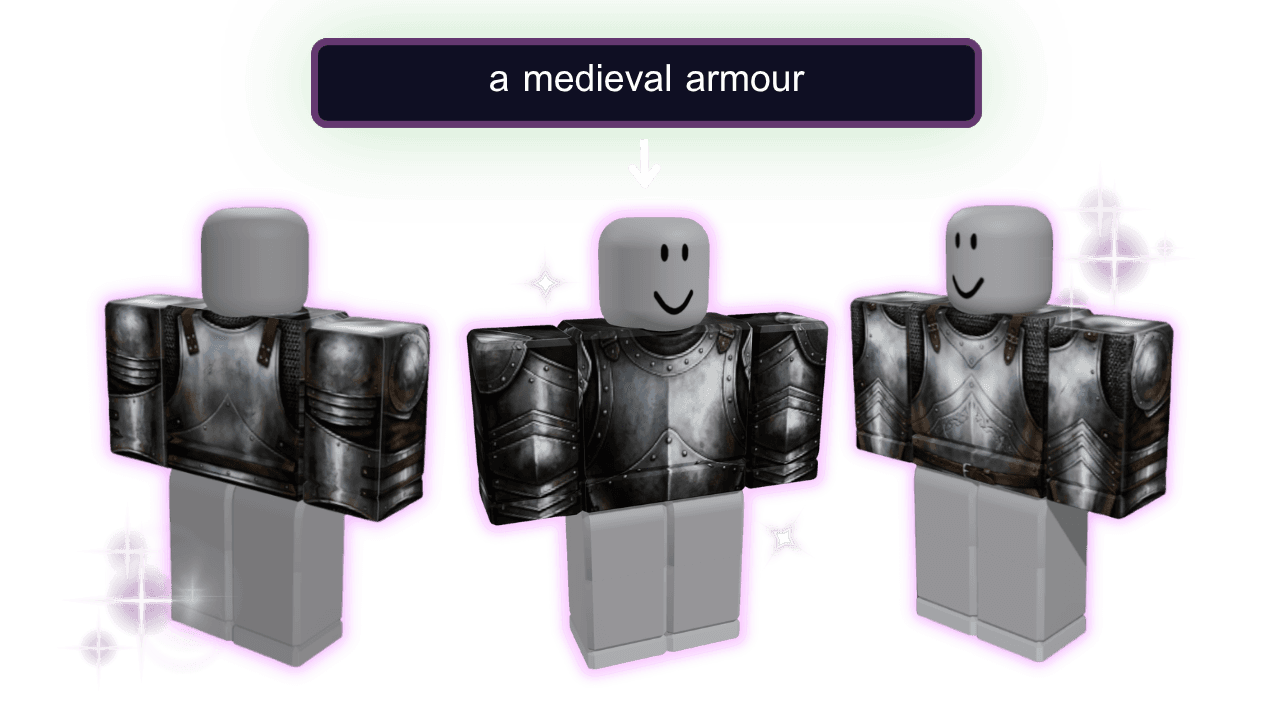
Generate templates from text descriptions using AI.
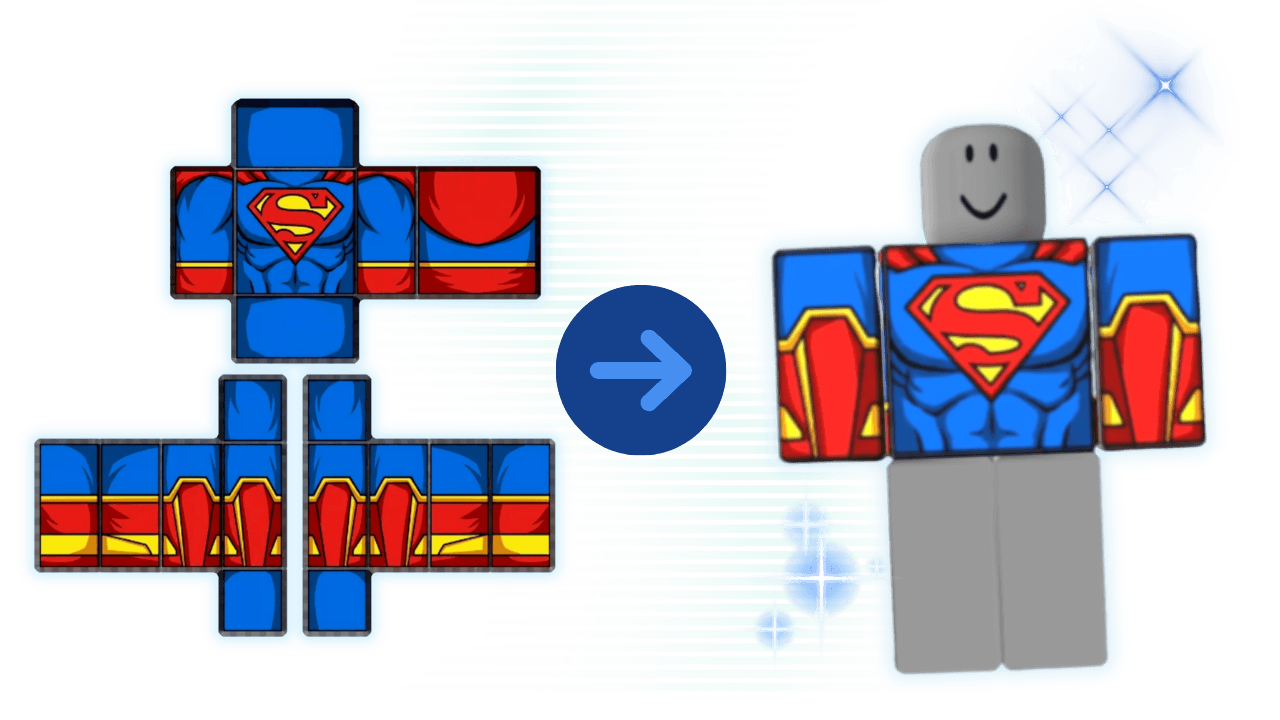
Preview shirts and pants on avatars before uploading.
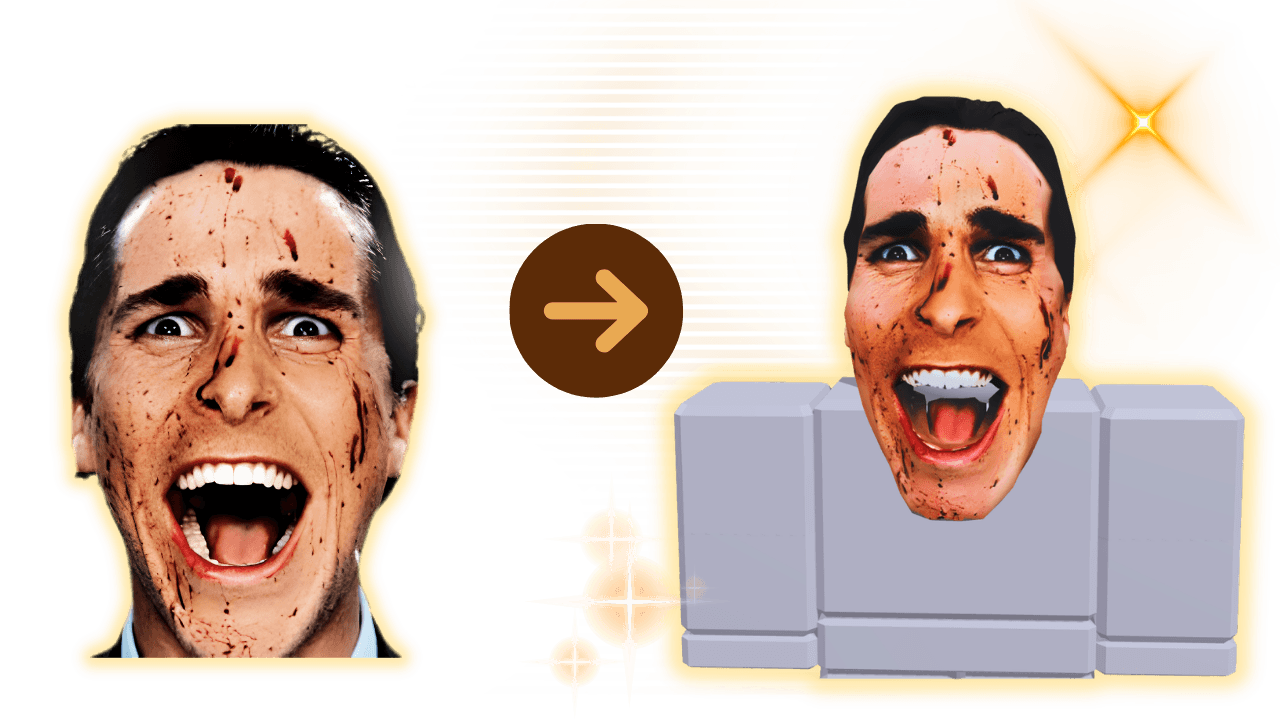
Create custom heads from photos with AI.
Use this page when the real job is Roblox pants, not shirt graphics. It keeps leg panels, waistband placement, and lower-body details in the right workflow.
Build pants that match the shirt, jacket, or layered outfit you already have in mind instead of treating bottoms like an afterthought.
Keep seams, mirrored details, and leg-panel graphics under control before you export, upload, and realize the fit breaks on-avatar.
Start with the pants layout, place the lower-body artwork correctly, then preview before you export the full outfit.
Open the pants template when you need the lower-body layout, not the shirt template. That keeps bottoms in the right workflow from the start.
Add colors, graphics, and matching details while checking how the pants work with the rest of the outfit, not just the flat file.
Preview the pants before export so seams, mirrored panels, and color breaks are fixed before you move on to the shirt or the final upload.
These are the problems creators usually run into when they are building bottoms, matching outfits, or finishing a shirt-and-pants set.
Roblox pants need their own lower-body workflow, especially when the goal is a clean fit instead of a quick mockup.
A lot of creators are not making one item in isolation. They are trying to finish a full fit that looks consistent on-avatar.
Most pants-template mistakes are obvious only after you preview the lower-body wrap on the avatar.
Yes. Use this page when you need Roblox pants, matching bottoms, or a lower-body template workflow that stays separate from shirt creation.
Pants use different lower-body panels, different matching problems, and a different search intent than shirt-template or shirt-maker queries. Keeping them separate makes the workflow clearer.
Yes. Start here for the bottoms, then move between the shirt template and shirt maker routes when the top still needs its own work. That keeps the full fit coordinated without mixing layouts.
Use the Roblox clothing help page when the blocker is upload prep, size confusion, or choosing the wrong workflow. Use this page when the blocker is specifically the pants design itself.
Use the shirt template page for upper-body work. Use this pants page when the artwork belongs on the legs or when you are trying to finish the bottoms for a full outfit.
Start with the pants template when you need a clean lower-body workflow, then finish the rest of the outfit in the shirt template or maker.