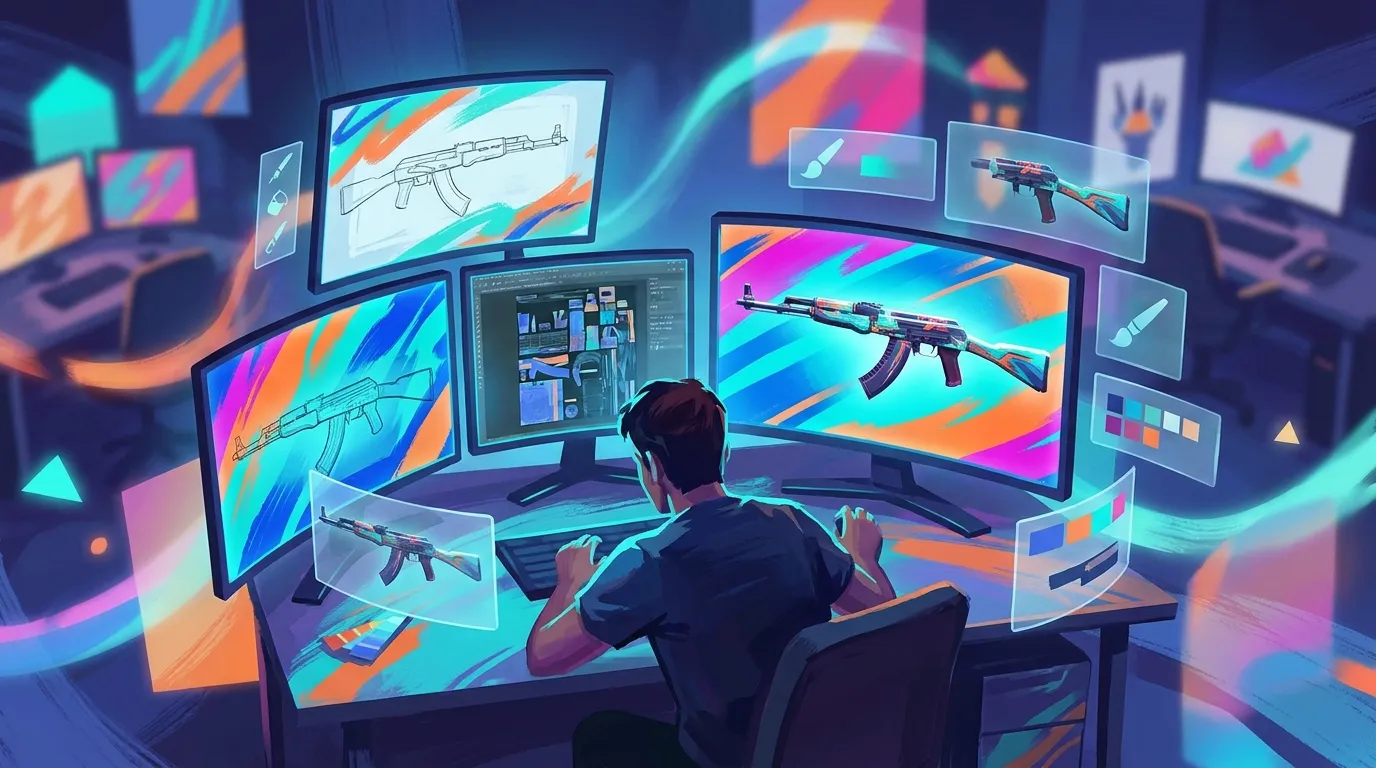
CS2 Skin Creator: From Mockup to Publish-Ready Art
If you want to turn an idea into publish-ready CS2 skins, this guide walks through the full process in the right order. It’s for game artists, modders, server creators, and creative players who want a practical CS2 skin creator workflow they can really use, not just read once and forget. By the end, readers will know how to plan a finish, make clean art, test it inside Counter-Strike 2, fix common issues, and put together a submission that looks professional.
A good skin has to do more than look cool on a flat canvas. It needs to read well on a weapon model, fit a finish style, hold up across different wear levels, and stay clear of legal trouble. Valve’s official workflow also includes specific steps inside the Workshop Item Editor, so learning that process early saves time later. For people who already make content for other games, some of the process will feel familiar. Platforms like Alive Games reflect this same change too, with creators looking for faster ways to design, preview, and ship custom game assets across different titles.
Before you start
Before you begin, make sure these are ready:
- A Steam account with Counter-Strike 2 installed
- CS2 enabled with Workshop Tools turned on in game options
- Basic image editing software with layer support and TGA export
- A mouse or a drawing tablet
- A folder for project files, references, exports, and older versions
- A short concept for your skin, including theme, colors, and finish type
- Time to test your design in the Workshop Item Editor more than once
If you’re new to this, keep the setup simple. Start with one weapon, one finish style, and one clear visual idea. That makes the process easier to manage, and easier to tweak if something ends up looking off.
Step 1: Pick one weapon and one finish style
Keep your first try small. Open Counter-Strike 2, turn on Workshop Tools, and launch the Workshop Item Editor. Click Create New, pick one weapon, and then choose one finish style. Valve supports Solid Color, Hydrographic, Spray-Paint, Anodized, Anodized Multicolored, Patina, Gunsmith, and Custom Paint Job.
That choice affects more than most beginners expect. The finish style changes how the artwork is placed, how much detail the design needs, and which visual ideas actually fit. A solid color concept, for example, can look clean with very little artwork. A custom paint job gives you a lot more room for illustration and layered detail, but it also means more work.
Here’s a simple comparison that can make that first choice easier.
| Finish Style | Best For | Beginner Difficulty |
|---|---|---|
| Solid Color | Clean color-led concepts | Low |
| Spray-Paint | Pattern-based designs | Low |
| Hydrographic | Repeated surface textures | Medium |
| Anodized Multicolored | Reflective color effects | Medium |
| Gunsmith | Detailed technical art | High |
| Custom Paint Job | Illustrated full-surface skins | High |
If this is your first skin, Spray-Paint or Solid Color is usually the easiest way to start. Both make it easier to focus on placement and readability without getting stuck on more complex material behavior.
Tip: Broad surfaces, like an AK-style rifle or a pistol slide, usually make a first design easier to read, and you can see the difference fast.
Common mistake: Picking a very detailed gun and a complex finish style at the same time.
Step 2: Build a strong mockup before you paint
Start with a quick mockup before you touch the template. Set up a canvas, place a side-view weapon reference, and block out the main layout areas: large color shapes, focal details, logo-safe areas, and a few quieter zones, because those really help. Keep that first pass to just three, four, or five colors.
This stage is not about final art. It is about deciding early what needs to stand out. A few honest questions can help: what should the player notice first? Which part of the weapon carries the theme? Will it still read clearly at game distance? Is anything pulling attention away from the main idea?
Mockups are also a good way to avoid a common cs2 skin problem: overdesign. Tiny details can look great when you are zoomed in on the file, but in game they often disappear. Larger shapes usually read better. Strong contrast often helps, and repeated motifs can work well too.
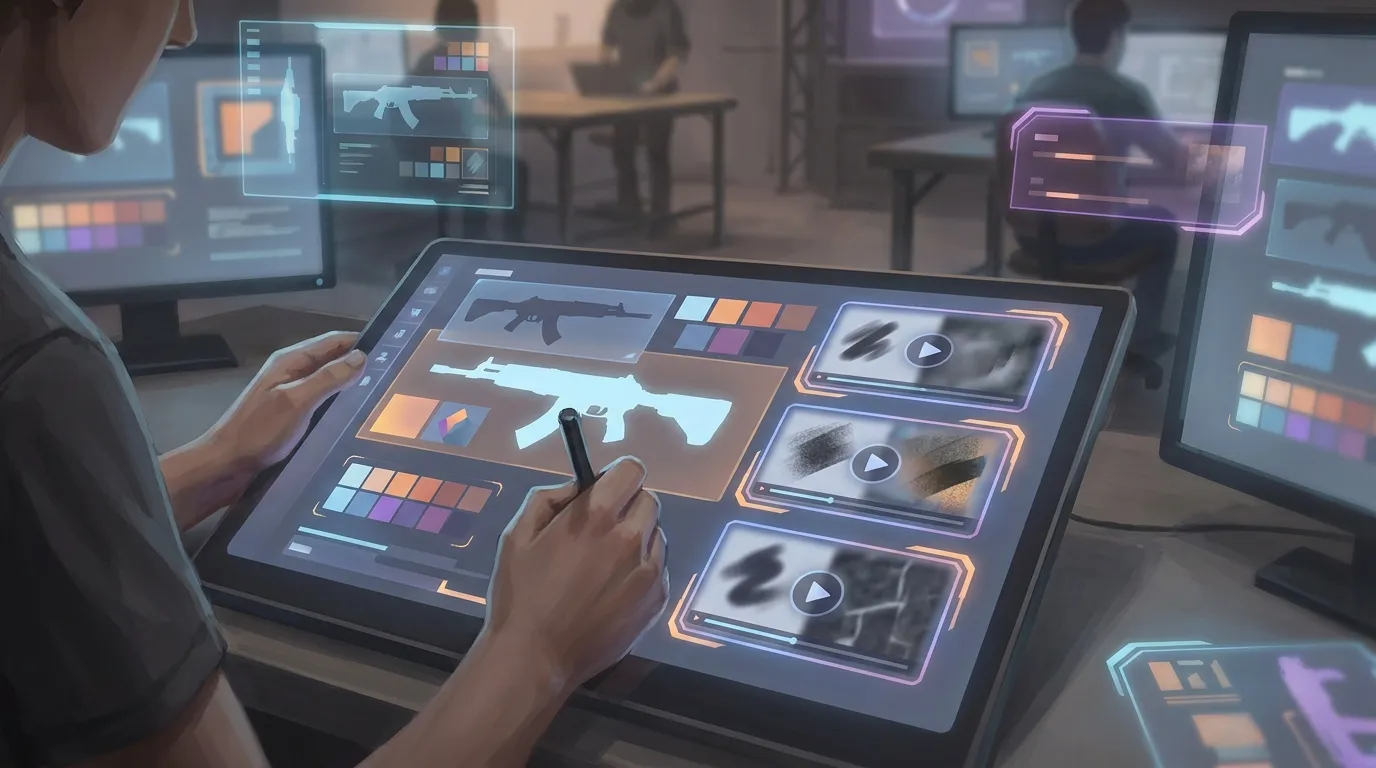
For more background on bigger design choices, that was covered here: 8 best practices for designing game skins in 2025. It is useful if you want to think beyond one game and make skins feel polished across different player communities.
Tip: Save your mockup as weaponname_concept_v01, v02, and so on. Versioning can save a lot of time.
Common mistake: Making the whole gun equally busy. Choose one hero area, and let the rest support it, so every inch is not fighting for attention.
Step 3: Export the template and line up your artwork
Once the concept is clear, export the weapon template from the Workshop Item Editor. Valve uses UV layouts with exported TGA templates for this step. Open the template in an image editor, then place the mockup art over it on separate layers; that part is usually pretty simple.
After that, line everything up to the UV map. A lot of first-time creators get stuck here, and it can definitely feel weird at first. The weapon is unwrapped into flat parts, so something that looks perfect in a mockup may split across seams. It takes a bit to get used to, so move slowly and work through it piece by piece:
Place the large shapes first
Start with the biggest color areas on the receiver, slide, stock, or magazine; it helps. The small details can wait, so save those for later.
Match edges to UV seams
Zoom in, it helps a lot. Make sure stripes, borders, and shapes don’t stop awkwardly at shell edges. If a line crosses a seam, copy a guide line onto both pieces, then line it up carefully so it meets nicely.
Add safe margins
Extend paint a few pixels past UV borders where needed; that really helps reduce visible seams after import.
Valve’s official workflow is pretty clear here: use the provided template, then bring textures back into the editor to preview and adjust. Expect several test passes instead of one perfect first export.
Tip: Keep guides and seam notes separate, and leave texture layers unflattened until later.
Troubleshooting: If shapes look stretched in preview, they’re probably placed across a curved or compressed UV area. Move the detail or scale it down.
Step 4: Paint for in-game readability, not just for the PSD
At this stage, the mockup turns into final art. Keep layers clean for color, texture, shadows, masks if your software supports them, and details that still make sense once wear is added later. Readability comes first. In CS2, the skin is seen in motion, under shifting light, and from a medium distance, not just full-size inside a PSD.
Use these checks as you paint:
- Set your base palette around one main color, one support color, and one accent.
- Keep the strongest contrast near the central body of the weapon.
- Save tiny detail for hero zones.
- Squint at the canvas to test dark-on-dark and light-on-light areas.
- Zoom out to around 25% every few minutes.
Many experienced creators stick to a simple test: if the design’s silhouette does not read quickly, the skin usually will not feel memorable in-game. That matters even more with cs2 skins that use geometric or abstract patterns, because those can start blending together very fast.
Still deciding on pattern styles? There’s more on that here: abstract vs. geometric patterns for game skins. It helps narrow the direction so the concept stays focused instead of pulling in too many ideas at once.
Common mistakes to avoid:
- Using too many colors with the same brightness
- Adding tiny text-like details that turn into visual noise
- Copying real brands, logos, or copyrighted art
- Forgetting that some areas are barely visible in first-person view
Valve requires original work, and creators need to own all rights to the material they submit.
Step 5: Import, preview, and fix issues inside CS2
Export your current texture as the required TGA file, then bring it back into the Workshop Item Editor. In preview, rotate the weapon instead of leaving it in one position. You will catch more issues by checking different angles and seeing how the design looks on edges, screws, curves, and smaller parts.
At this stage, the art is finally in 3D. Something that looked good in 2D can fall apart pretty fast once it wraps onto the weapon, so take a close look for:
| Issue | What It Looks Like | Fix |
|---|---|---|
| Visible seam | Line breaks or jumps | Extend artwork and realign seam edges |
| Stretching | Pattern looks warped | Resize or move detail away from compressed UV zones |
| Weak contrast | Design looks flat in preview | Increase light-dark separation in main shapes |
| Overcrowding | Skin feels messy at distance | Remove small details and simplify focal zones |
After every fix, export again and reimport. Most people need at least three to six passes before the skin starts looking clean, so that part is normal and not a sign that something went wrong.
Tip: Test your skin up close, but also view it at normal play distance. Both views can reveal different problems.
Troubleshooting: If the finish style is not showing the effect you expected, go back and make sure you picked the right style during project setup. A design built for Gunsmith will behave differently from one made for Spray-Paint, and the difference is usually obvious right away.
Step 6: Prepare the file for submission and legal review
Once the skin looks right in preview, it’s time to get it ready to publish. Before you submit it, Valve requires creators to accept the Steam Workshop Legal Agreement and the Supplemental Workshop Terms, yes, both. Make sure you read them first. That part is easy to miss.
Then do one final check, just to be safe:
Confirm originality
Remove any borrowed logos, game icons, team marks, brand art, or traced images, seriously, all of it. If it wasn’t made from scratch or properly licensed, don’t submit it, not even by mistake.
Clean your source files
Give your final files clear names. Keep one folder for the working file, the exported TGA, preview screenshots, and concept notes so things stay organized.
Write a simple presentation
Use a short skin name, one clear description, and a couple of screenshots that show the design from its best angles. Keep the idea in plain language so people do not have to guess what they are seeing.
If you’re coming from older pipelines, CS2 vs CS:GO skin creation: key technical differences every designer should know can help you spot workflow changes before you submit, so check it first.
Common mistake: Rushing the publish step with messy screenshots and no clear concept. Presentation shapes how seriously people take the work, and a weak setup is hard to cover up.
Step 7: Verify success and plan your next release
A skin is ready to publish once it passes four checks: it looks clean in the Workshop Item Editor, reads well at game distance, uses a finish style that fits the idea, and includes only original art you have the right to submit. That’s the standard to aim for.
Before moving on, give it one more pass the way a reviewer would. Check seams, contrast, naming, screenshots, and legal safety. Those small details can decide whether the final result feels polished. If all five hold up, the workflow did its job.
What comes next depends on the goal. To get better fast, it usually helps to make a few small skins instead of putting everything into one huge project. A minimal skin can come first, then a pattern skin, and after that maybe a more detailed custom paint job. Repeating the full process teaches more than endlessly refining a single file. It also gives you room to study finish behavior, compare styles, and build a portfolio for Counter-Strike and other custom asset projects.
One solid cs2 skin creator habit is keeping the process easy to repeat: start with a clear mockup, test early in 3D, then refine with a reason. Keep the workflow clean and focused. Over time, that helps cs2 skins look better with each new release.